Dictate anywhere
Click a text field, hold your Push to Talk shortcut, speak, then release. Speakmac inserts the transcript at the cursor.
Hold
Speak
Text appears
Send Maya the revised note today.
Fn is the default on a fresh setup. If your shortcut is different, use the one shown in Dictation → Shortcuts.
Names that dictation gets wrong
Open Words & Text → Custom words → Add. Enter the exact name or term; leave Correct a misspelling off unless you want a replacement pair. In 5.6.0, eligible words can help the new Fast engine recognise the term itself. Your existing corrections still work.
Vocabulary words and corrections explainedLive Preview is optional in Dictation. If its model download fails, Try again opens the app with progress and error details; final transcription can still work without the preview.
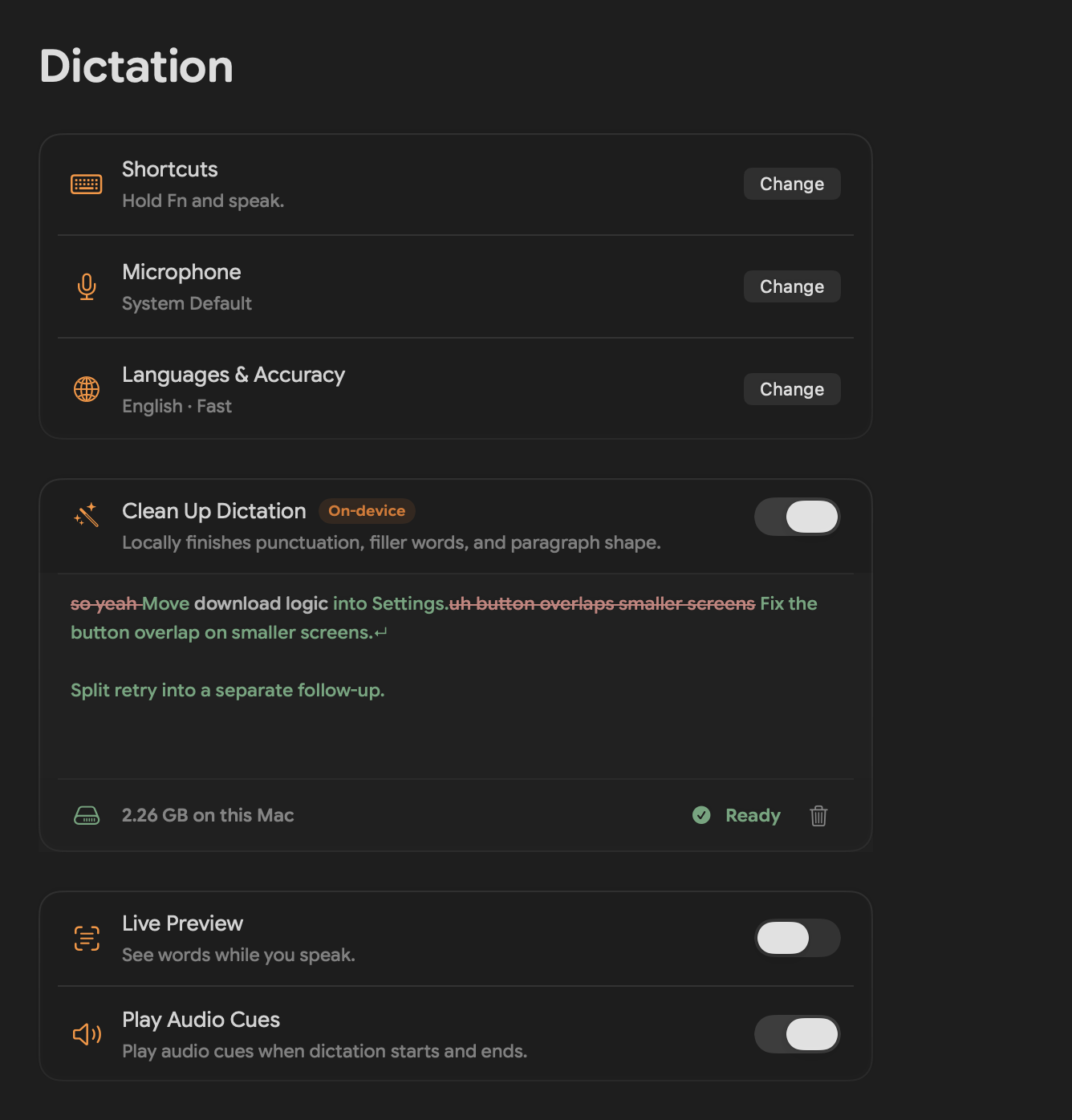
Clean Up Dictation
Use Clean Up when you want rough spoken English to arrive as a readable message, note, or email.
What you said
so yeah send the revised note to maya today and um ask if friday still works
What lands
Send the revised note to Maya today. Ask if Friday still works.
In Speakmac: Dictation Clean Up Dictation Set Up
For the best local English result, choose More Accurate and keep Clean Up on. More Accurate recognises the words; Clean Up finishes punctuation, fillers, and paragraphs. Expect a small extra wait.
The model downloads once, then Clean Up runs on this Mac. It currently supports English.
Shortcuts
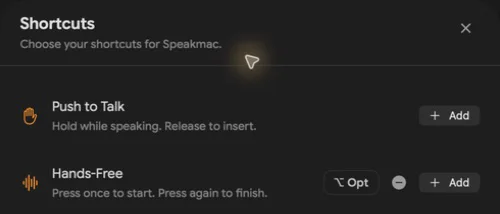
Give quick dictation and longer hands-free dictation separate controls. Fn and Right Option are two simple examples.
Push to Talk
Hold while speaking. Release to insert. Best for replies and short notes.
Hands-Free
Press once to start. Press again to stop. Best for longer messages and drafts.
In Speakmac: Dictation Shortcuts
If you used Space to keep recording
Old habit
Hold dictation key → press Space → keep talking
Use now
Press Hands-Free → talk → press it again
Space is not a universal lock action. If that was part of your workflow, add a dedicated Hands-Free shortcut instead.
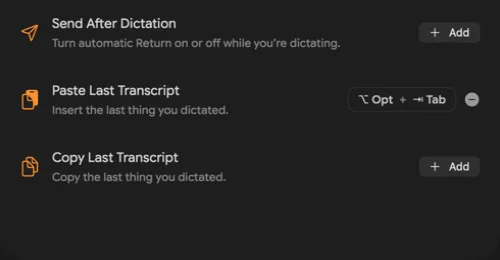
Actions worth assigning
| Action | Use it when |
|---|---|
| Send After Dictation | The text should be inserted and Return pressed automatically. |
| Paste Last Transcript | The last dictation exists, but it did not land at the cursor. |
| Copy Last Transcript | You want the last dictation on the clipboard without changing the current field. |
Record a meeting
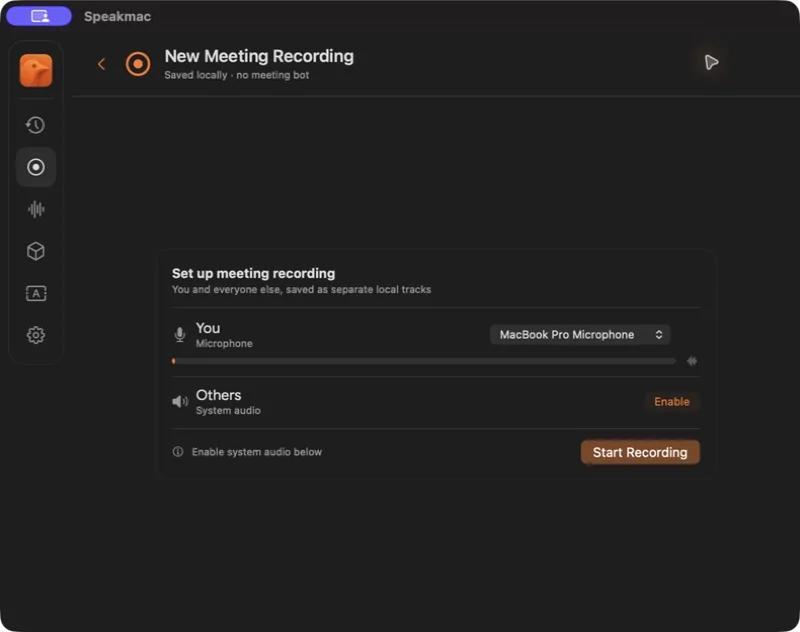
Meeting Mode records your microphone and the Mac’s system audio locally. It does not add a bot to the call.
- Open Meetings and choose Record Meeting.
- The first time, choose Enable beside System audio and allow it in macOS. Reopen Speakmac if macOS asks.
- Choose Start Recording. Stop it in Speakmac when the conversation ends.
Beta · macOS 15 or later · paid Speakmac licence. Tell participants before recording.
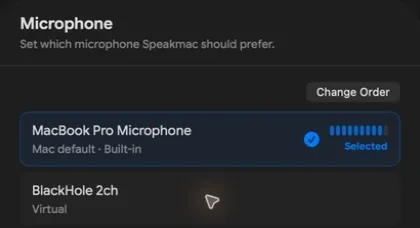
Microphones
There are two useful controls: choose the microphone Speakmac should use, then put your fallbacks in order.
Choose a microphone
Open Dictation → Microphone and select the input you want now.
Set the fallback order
Choose Change Order and drag the microphone you trust most to the top. A disconnected mic stays saved and becomes available again when it reconnects.
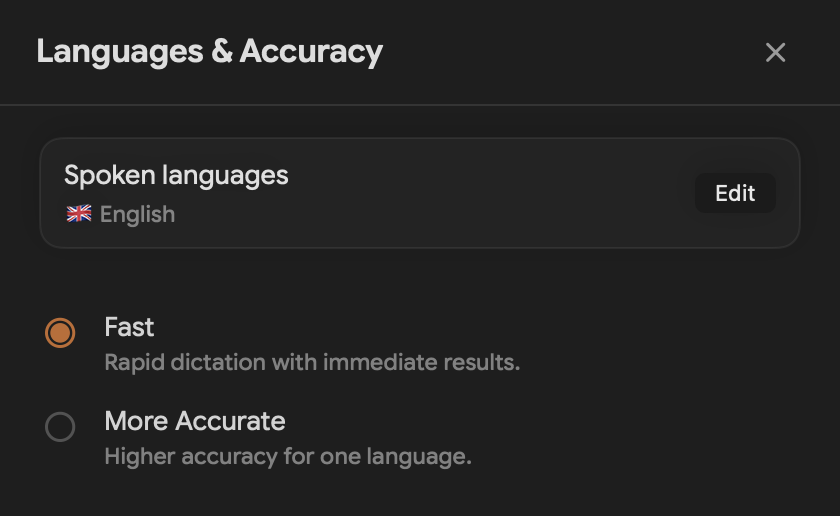
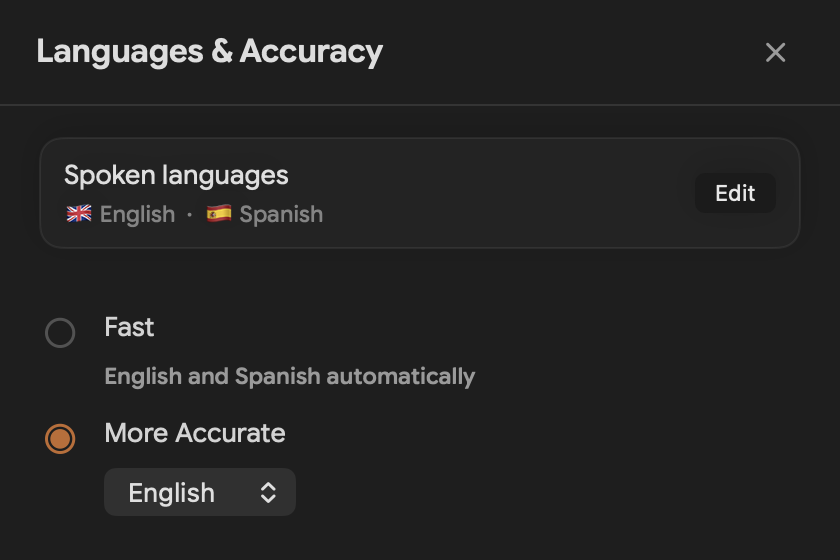
Languages & Accuracy
Choose the result you need. The settings use plain choices instead of asking you to understand model names.
| Choice | Use it for | What to expect |
|---|---|---|
| Fast | Everyday dictation and automatic language handling | Immediate results |
| More Accurate | Careful dictation in one supported language | A little more setup and time |
In Speakmac: Dictation Languages & Accuracy
Get the last transcript back
If recording finished but the text did not appear, recover it before saying everything again.
Copy or paste the last transcript
Use the menu-bar action or the optional shortcut you set in Shortcuts.
Undo a cancellation
After Escape cancels recording or processing, choose Undo while the cancellation message is visible. Speakmac resumes from the saved audio without opening the main app. This recovery is unavailable when audio is discarded for privacy.
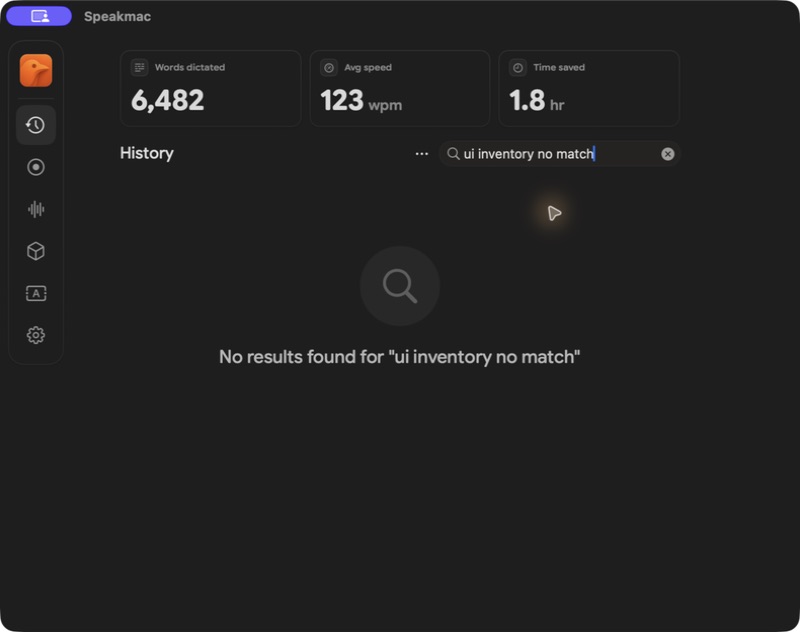
Open History for anything older
Search the words you remember, copy the text, or replay saved audio.
Retry only when processing failed
Keep the source until you have checked the result.
Privacy Mode intentionally keeps no local History, so these recovery paths may be unavailable for those sessions.
Transcribe an audio file
Use an existing recording instead of recording it again through the microphone.
Drag it into Speakmac
Drop a file from Finder onto the Speakmac window.
Or use Open With
Control-click the file in Finder and choose Open With → Speakmac.
The item appears in History. Keep the original until you have checked the transcript.
Updates & compatibility
Use Speakmac’s own update action. You do not need to hunt for another installer.
- Open the Speakmac app menu and choose Check for Updates.
- To receive updates in the background, leave Keep Speakmac up to date automatically on in Settings. Turn it off when you want Speakmac to check, download, and install only after you choose Check for Updates.
- When an update is available, follow the in-app update flow.
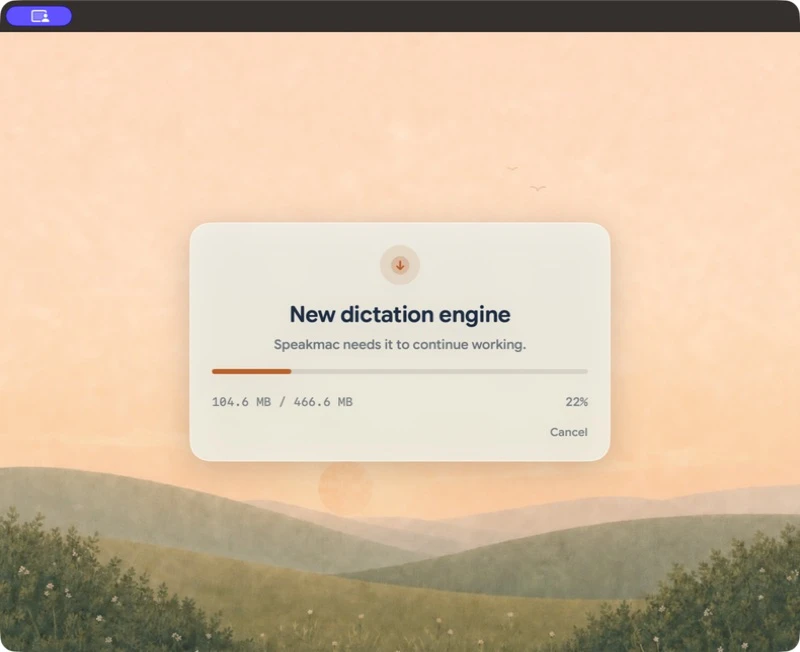
- In 5.6.0, some Macs also need the new dictation engine. Choose Update in the engine prompt, or Download on Home. Finish this one-time model download before dictating.
- After updating, run one short dictation and check your shortcuts, microphone order, and Clean Up state.
App update → Engine download → Ready → Dictate
The model setup screen shows the size for your Mac and its progress. A small patch can reuse verified old files; otherwise Speakmac downloads the full model. If setup fails, reconnect and choose Try again. Closing or cancelling does not skip the required setup.
The previous model is removed only after a successful real dictation with the new engine. Your existing words and settings stay in place.
Troubleshooting
Check the stage that failed instead of changing every setting at once.
| What happened | Check this first |
|---|---|
| The shortcut does nothing | Confirm the binding in Shortcuts, then confirm Accessibility permission and remove any app shortcut conflict. |
| Recording starts but hears nothing | Choose a connected microphone and confirm its level moves. |
| A transcript exists but does not insert | Copy or paste the last transcript, then try a normal editable field to isolate an app-specific insertion problem. |
| The other side of a meeting is missing | Enable system audio and reopen Speakmac if macOS asked for it. |
Still blocked? Email [email protected] with the Speakmac version, macOS version, target app, shortcut, and whether the transcript appears in History.