Mac Dictation Microphone Not Working: Fix the Input Path First
By Kiran Jd
Published · Updated
By Kiran Jd
Published · Updated
Quickest first check: run the free Mac microphone test in your browser. If the level meter moves while you talk, the mic itself is fine and the problem is permissions or app settings — skip to step 2.
Go to:
System Settings -> Sound -> Input
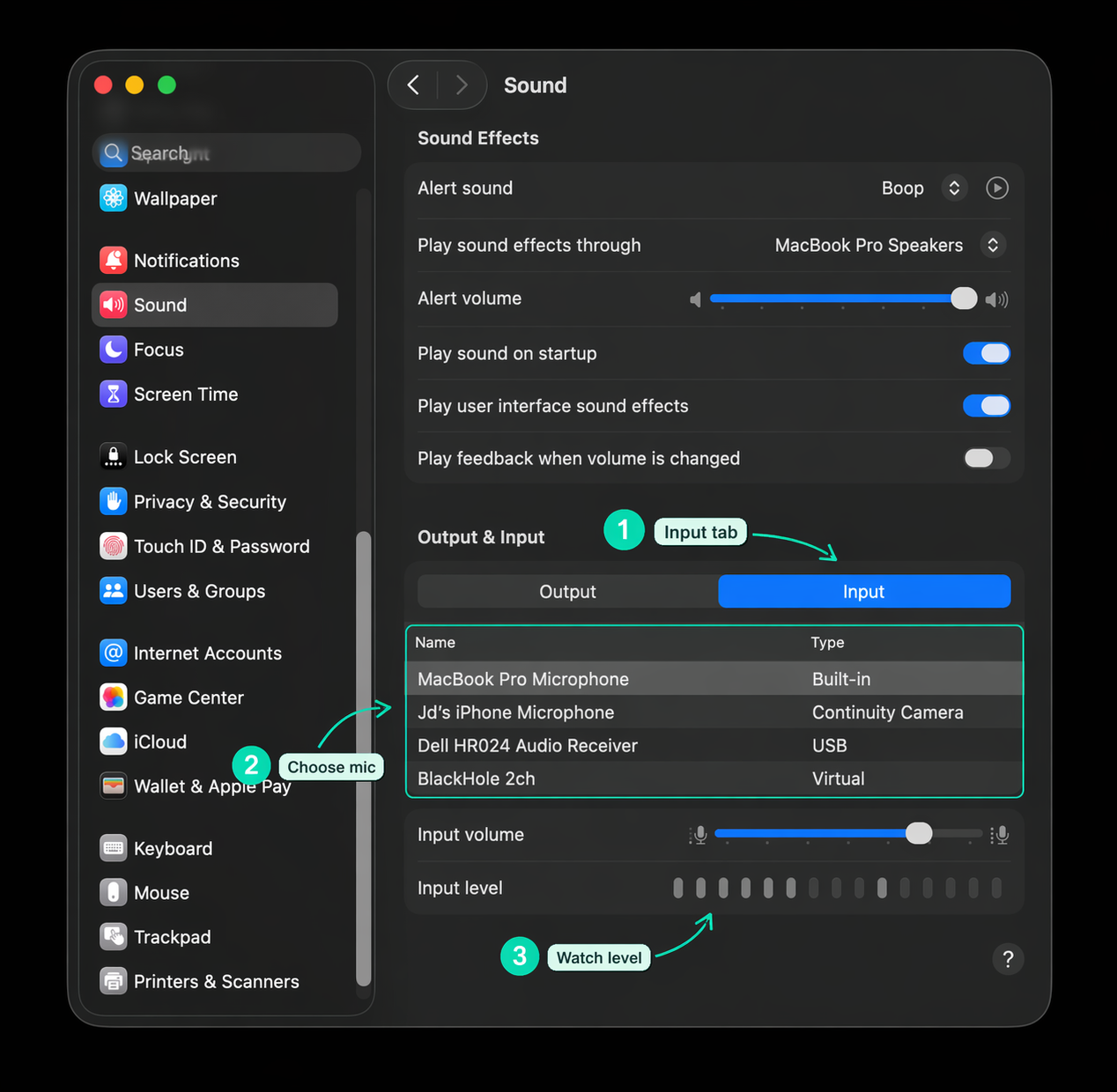
Select the microphone you intend to use, then speak at your normal dictation volume.
What to look for:
| What you see | What it means |
|---|---|
| Input level moves | The Mac can hear the microphone. Move to permissions. |
| Input level is flat | The Mac is not hearing that microphone. |
| Wrong microphone is selected | Dictation may be listening to a headset, monitor, or dock instead of the built-in mic. |
If the level is flat, switch to another input device and back again. This often resets a stuck Bluetooth or USB audio path.
Go to:
System Settings -> Privacy & Security -> Microphone
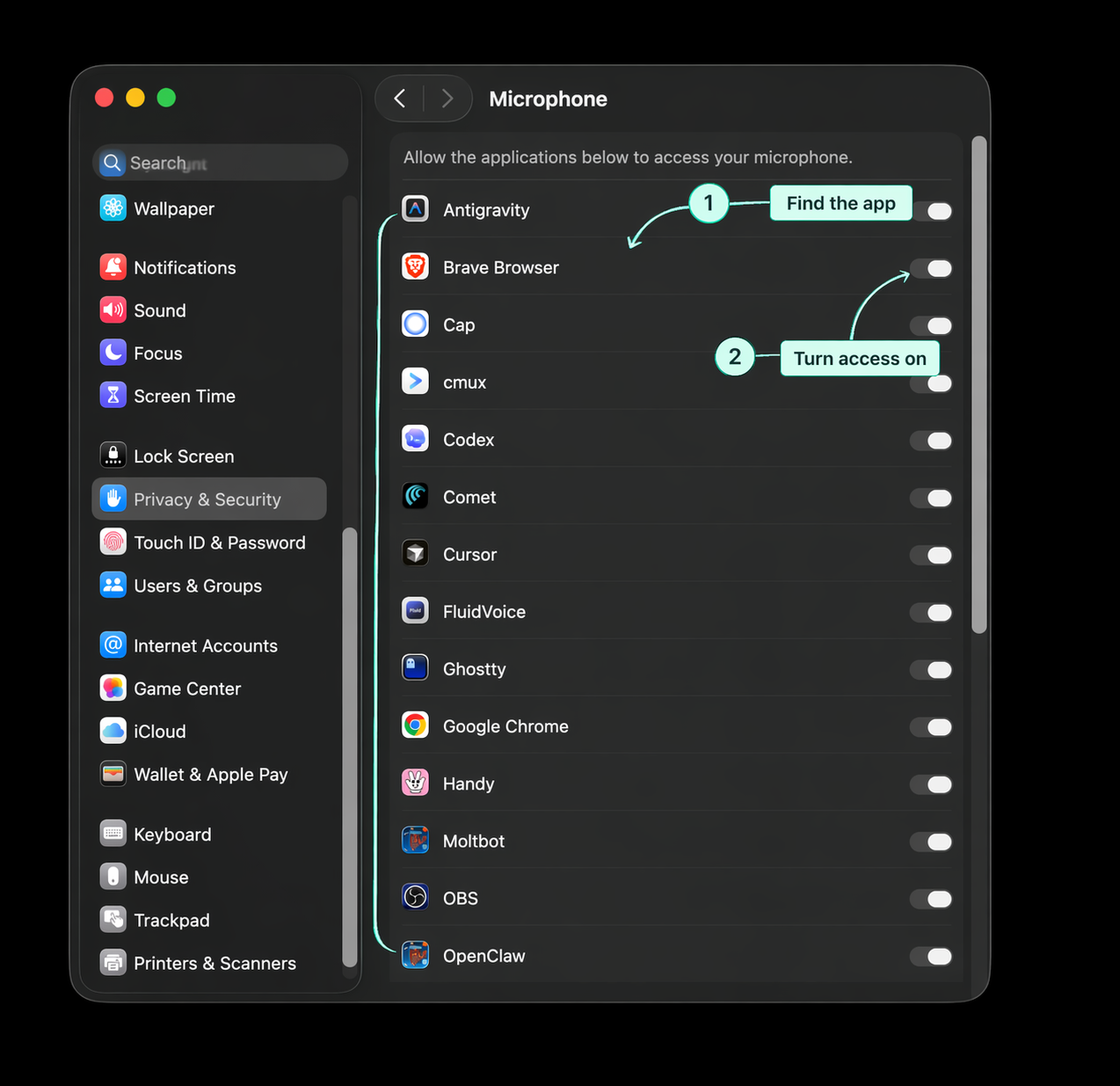
Turn on microphone access for the app that needs to listen.
For Apple Dictation, this may be the app where you are dictating. For a standalone tool such as Speakmac, the dictation app itself also needs microphone access.
If the app is missing from the list, quit it, reopen it, and try dictating again so macOS can show the permission prompt.
For AirPods or Bluetooth headsets:
For USB microphones:
First make sure the Mac can hear live audio. Then check Dictation settings.
Once the input meter moves, open a basic text field and test dictation again.
If Apple Dictation still fails:
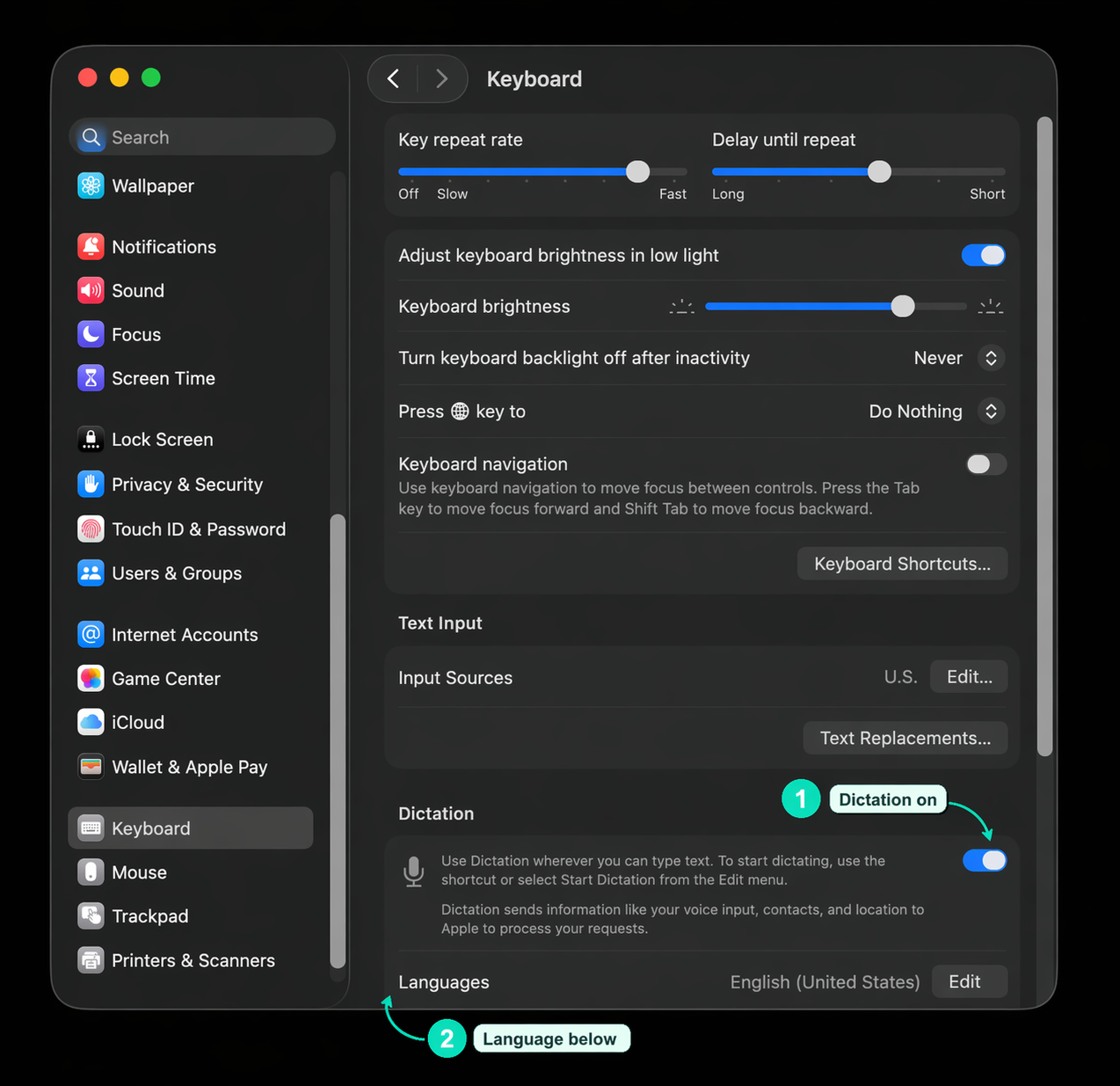
If a separate dictation app hears you but does not type the text, check Accessibility permission instead of microphone permission.