Mac Dictation Works in Some Apps but Not Others
By Kiran Jd
Published
By Kiran Jd
Published
Open Notes or TextEdit and dictate one sentence.
Then try the same sentence in the app that is giving you trouble.
| Result | What it tells you |
|---|---|
| Works in Notes, not in one app | That app is probably the problem. |
| Does not work anywhere | Check the microphone or Dictation setting. |
| Works in one box, not another box in the same app | That box may not accept dictated text. |
| A separate dictation app hears you but no text appears | Check Accessibility permission. |
This quick check keeps you from changing every Mac setting when only one app is the issue.
Some boxes look like text fields but do not behave like normal places to type.
Before dictating:
If typing by hand does not work there, dictation will not work there either.
For Apple Dictation, check microphone permission for the app where you are dictating:
System Settings -> Privacy & Security -> Microphone
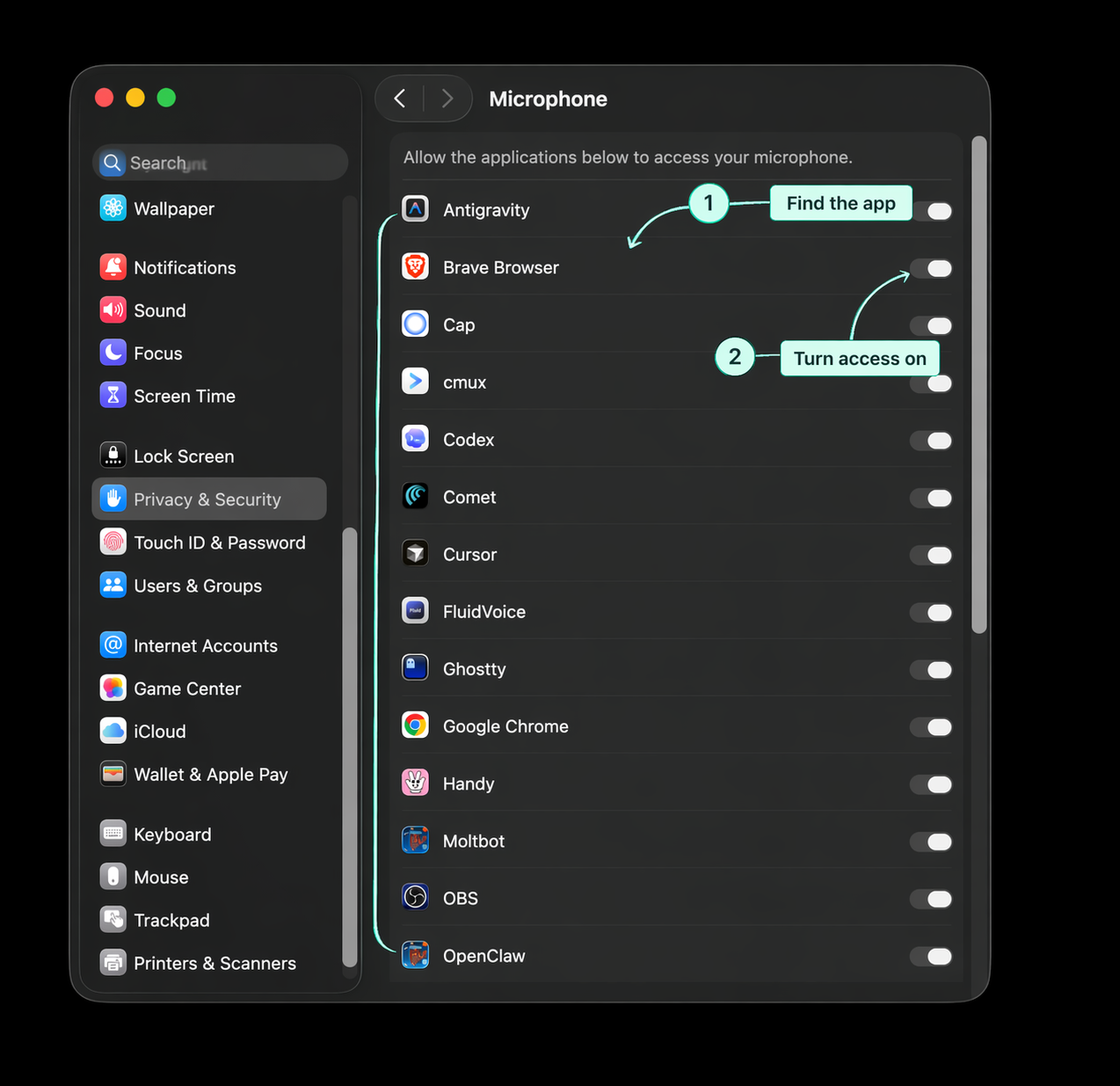
For a separate dictation app, check both:
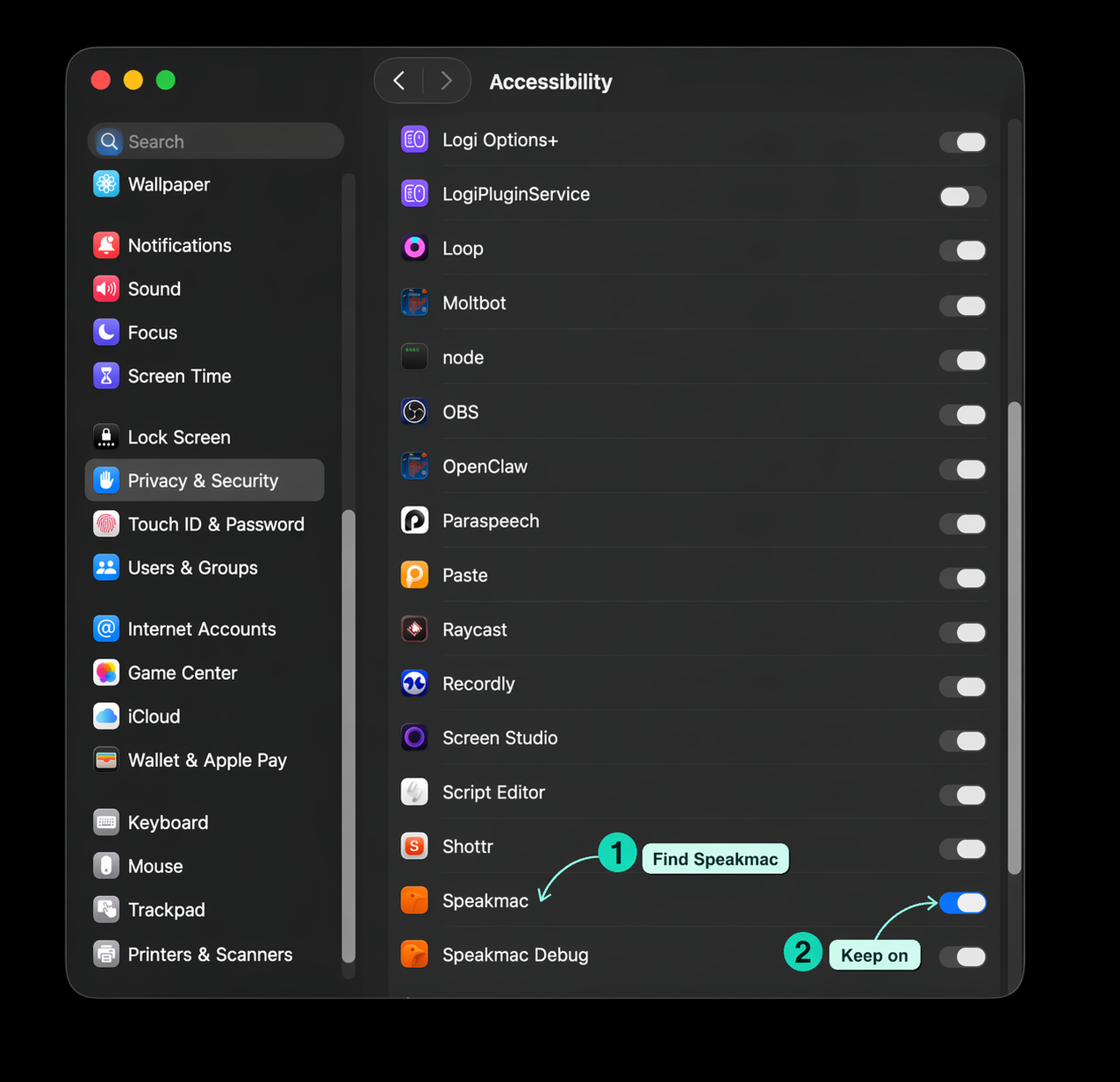
Accessibility matters because a dictation app needs permission to type into other apps. Without it, the app may hear you but still fail to put text at the cursor.
A dictation shortcut can work in one app and fail in another if the open app uses that same shortcut.
Common examples:
Change the dictation shortcut for a minute and test again. If the new shortcut works, the old shortcut was already being used by that app.
If one app still will not accept dictated text, use live preview, copy and paste, or dictate into Notes and move the text across. The important thing is not to keep changing microphone settings after Notes has already proved the microphone works.