If Mac dictation is not working, do not start by reinstalling apps or changing every setting at once. Most failures come from one of four layers: microphone permission, the selected input device, macOS Dictation state, or a conflict with another voice tool.
Use this checklist in order. It starts with the checks that fix the most failures and ends with the lower-level resets.
Quick Symptom Map
| Symptom | Most likely check |
|---|---|
| Dictation opens but no words appear | Microphone permission or wrong input device |
| Input meter does not move | Sound input selection, Bluetooth, or USB mic reset |
| Dictation works in one app but not another | App-specific microphone permission |
| Built-in dictation starts then stalls | Toggle Dictation off/on, then restart the target app |
| A third-party tool works but Apple Dictation does not | macOS Dictation state or language pack |
| Apple Dictation works but a third-party tool does not | Accessibility/microphone permission for that tool |
1. Check Microphone Permissions
If the active application lacks microphone authorization, dictation will fail silently — the transcription window may open, but no text appears.
Path:
System Settings → Privacy & Security → Microphone
Action list:
- Confirm the application you are speaking into (for example, Notes, Pages, or a text field in Mail) appears in the list and is toggled on.
- If you rely on a third-party tool such as Speakmac, verify it is listed here as well.
- If an app is missing from the list, restart it; macOS then re-prompts for permission the next time you attempt dictation.
If macOS never shows the prompt, quit the app completely and reopen it before testing again. Permission prompts are tied to the app process, not just the visible window.
2. Confirm the Input Device
macOS occasionally reassigns the active microphone after sleep/wake cycles or Bluetooth re-connections.
Path:
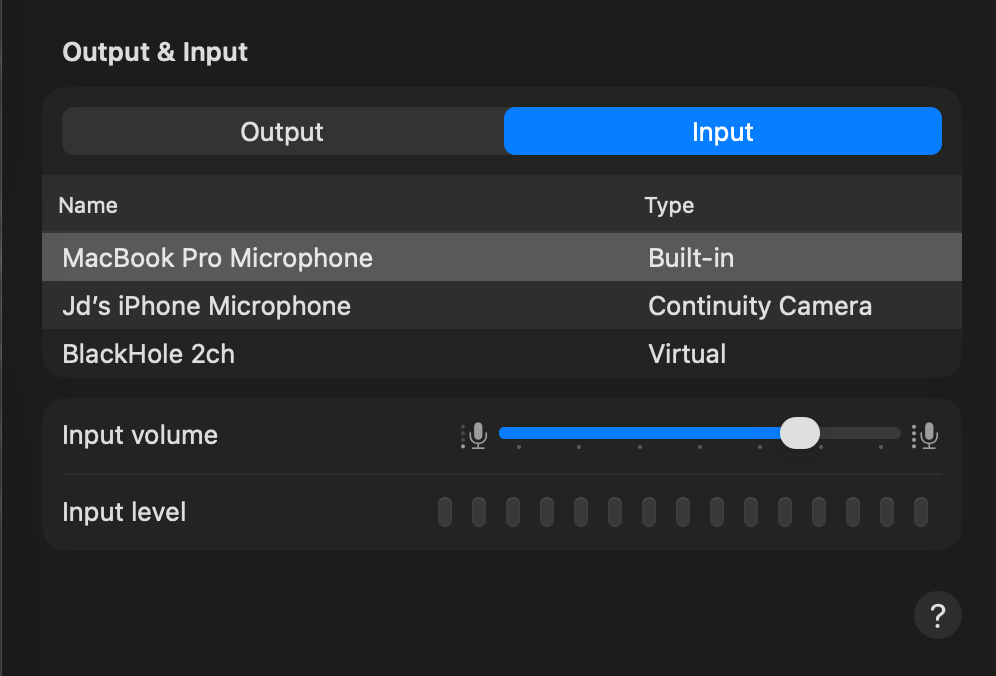
System Settings → Sound → Input
Walk-through:
- Identify the correct device in the list (built-in microphone, USB headset, or AirPods).
- Observe the Input Level meter: it should rise and fall as you speak.
- If the level stays flat despite speaking loudly, switch to a different device and back again to reset the audio pathway.
3. Toggle Dictation Off and On
A soft restart of the dictation subsystem often resolves stalling or permission residue.
Path:
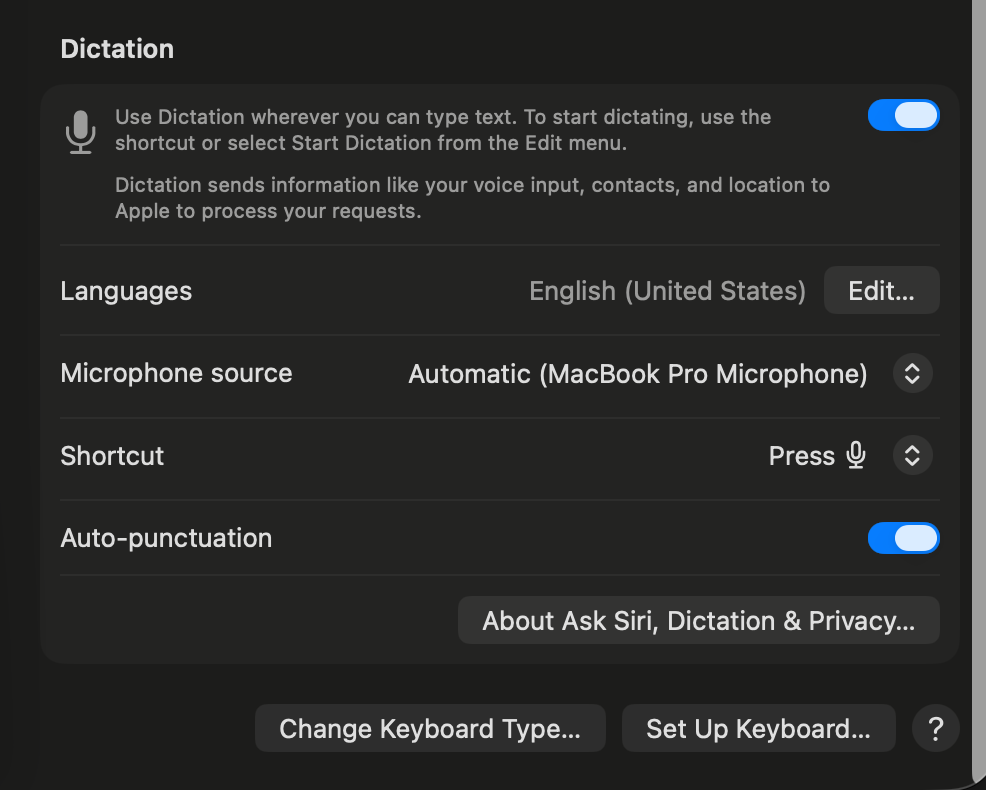
System Settings → Keyboard → Dictation
Steps:
- Turn Dictation off.
- Wait approximately 10 seconds to allow background daemons to exit.
- Turn Dictation back on.
If you use a third-party dictation utility, quit and relaunch that application immediately after toggling macOS Dictation to ensure it re-initializes with the fresh settings.
Do not change the shortcut yet. First confirm dictation works with the current shortcut, then adjust hotkeys after the audio path is healthy.
4. Download Offline Language Files
For operation away from Wi-Fi or when personal firewall rules block Apple servers, the required language pack must reside locally.
In the same Dictation settings pane:
- Select your dictated language.
- If you see an Install or Update button for the pack, click it and wait for completion; otherwise the pack is already present.
When the offline pack is absent, dictation quietly attempts to contact Apple’s servers and returns an empty transcript if the network path is unreachable.
5. Restart the App (or Your Mac)
Audio drivers occasionally hang in low-power states, particularly after connecting or disconnecting Bluetooth headsets.
Simple protocol:
- Close the application where dictation failed.
- If dictation remains unresponsive system-wide, restart macOS to reload the core audio and speech stacks.
6. Disable Conflicting Dictation Tools
Running both macOS Dictation and a third-party handler simultaneously can cause one or both to suppress the incoming audio stream.
Quick test:
- Temporarily disable System Settings → Keyboard → Dictation.
- Activate your alternative tool; verify dictation works.
- Re-enable macOS Dictation later if desired or uninstall the conflicting helper.
If you use Speakmac hotkeys, also check that the recorder hotkey is not colliding with another utility. Keyboard launchers, screen recorders, clipboard tools, and window managers can all reserve global shortcuts before a dictation app receives them.
If built-in dictation works but still feels too limited for daily writing, compare the upgrade path in Apple Dictation vs Speakmac. For the broader market view, see Best Voice to Text Apps for Mac.
7. Reset Audio Input (Advanced)
When the input meter still refuses to move, the audio path itself may require a low-level reset.
- USB microphones: unplug the device, wait three seconds, plug it into a different port.
- 3.5 mm jack mics: disconnect and reconnect firmly; inspect for red light indicating a stuck digital output.
- Bluetooth devices: open System Settings → Bluetooth, click the (i) icon next to the microphone, choose Forget Device, then re-pair.
8. Check Accessibility Permission for Third-Party Dictation
Apple Dictation mostly depends on the system dictation stack. Third-party dictation tools usually need one more permission because they insert text into the active app.
Path:
System Settings → Privacy & Security → Accessibility
Action list:
- Confirm the dictation app is listed and enabled.
- If it is enabled but text still does not insert, toggle it off, quit the app, toggle it back on, then reopen the app.
- If the app is missing, open the dictation app once and try to dictate so macOS has a reason to request permission.
This matters when transcription appears to work but the text never lands in Notes, Mail, Cursor, Slack, or a browser field.
When macOS Dictation Still Fails
If built-in dictation freezes unpredictably or fails after every system update, migrating to a standalone tool removes some of the usual failure points.
Speakmac is mentioned in this context because it operates fully offline. This sidesteps network hiccups and Apple server outages by hosting the speech engine on the Mac rather than streaming the audio out.
Use the built-in tool if you only dictate occasionally. Use a dedicated tool if you want repeatable hotkeys, local models, live preview, custom replacements, snippets, and privacy mode around a daily workflow.
Final Recommendation
Permission oversights and mis-selected microphones account for most dictation failures. Use the symptom to decide whether you should keep fixing the built-in path or move to a dedicated Mac workflow.
| If the issue is... | Best next step | Why |
|---|---|---|
| No audio input at all | Fix microphone permission and selected input first | Most failures start before dictation software gets any usable signal. |
| Text appears in some apps but not others | Use the app-specific checklist in this guide | The failing layer is usually permission or text insertion, not recognition quality. |
| Google Docs voice typing fails on Mac | Read the Google Docs fix guide | Browser dictation has its own permission and compatibility issues. |
| Apple Dictation works but feels too limited | Compare Apple Dictation vs Speakmac | That is an upgrade decision, not a repair problem. |
| You want fewer network and update-related failure points | Compare offline dictation apps for Mac | Local tools reduce the number of moving parts. |
| You are deciding whether paid dictation is worth it | Use the Mac dictation pricing guide | Price only matters after the workflow is reliable enough to use daily. |
Related posts
- Speech to text for Mac
- Dictation Software for Mac
- Apple Dictation vs Speakmac
- Google Docs Voice Typing Not Working on Mac
- Voice to Text for Mac: Live Dictation vs Online Converters
- Mac Dictation Microphone Not Working
- Mac Dictation Not Typing Text
- Mac Dictation Works in Some Apps but Not Others
- Best Offline Dictation Apps for Mac in 2026
- Mac Dictation App Pricing: One-Time vs Subscription Tools
- Speakmac vs Paraspeech: Private Mac Dictation Compared
- Speakmac hotkey guide