If you are searching for voice to text for Mac, a speech to text converter on Mac, or a voice typing app that works outside one browser tab, you are usually trying to solve one of three different problems:
- you want live speech to text in the app you are already using
- you want to transcribe an audio file after the fact
- you want a better alternative to a browser-based speech to text online tool
Those are not the same job, and most pages about speech to text blur them together.
Last checked: April 24, 2026
Choose the Right Voice-to-Text Category
| If you need... | Best category | Typical tool |
|---|---|---|
| Text appears where your cursor already is | Live Mac dictation | Speakmac, Apple Dictation, Superwhisper |
| A transcript from an audio or video file | File transcription | MacWhisper or a transcription-focused app |
| A quick browser test with non-sensitive audio | Online converter | Browser speech-to-text tools |
| Transcription inside a product or backend | Speech-to-text API | Deepgram, Whisper API, or another developer API |
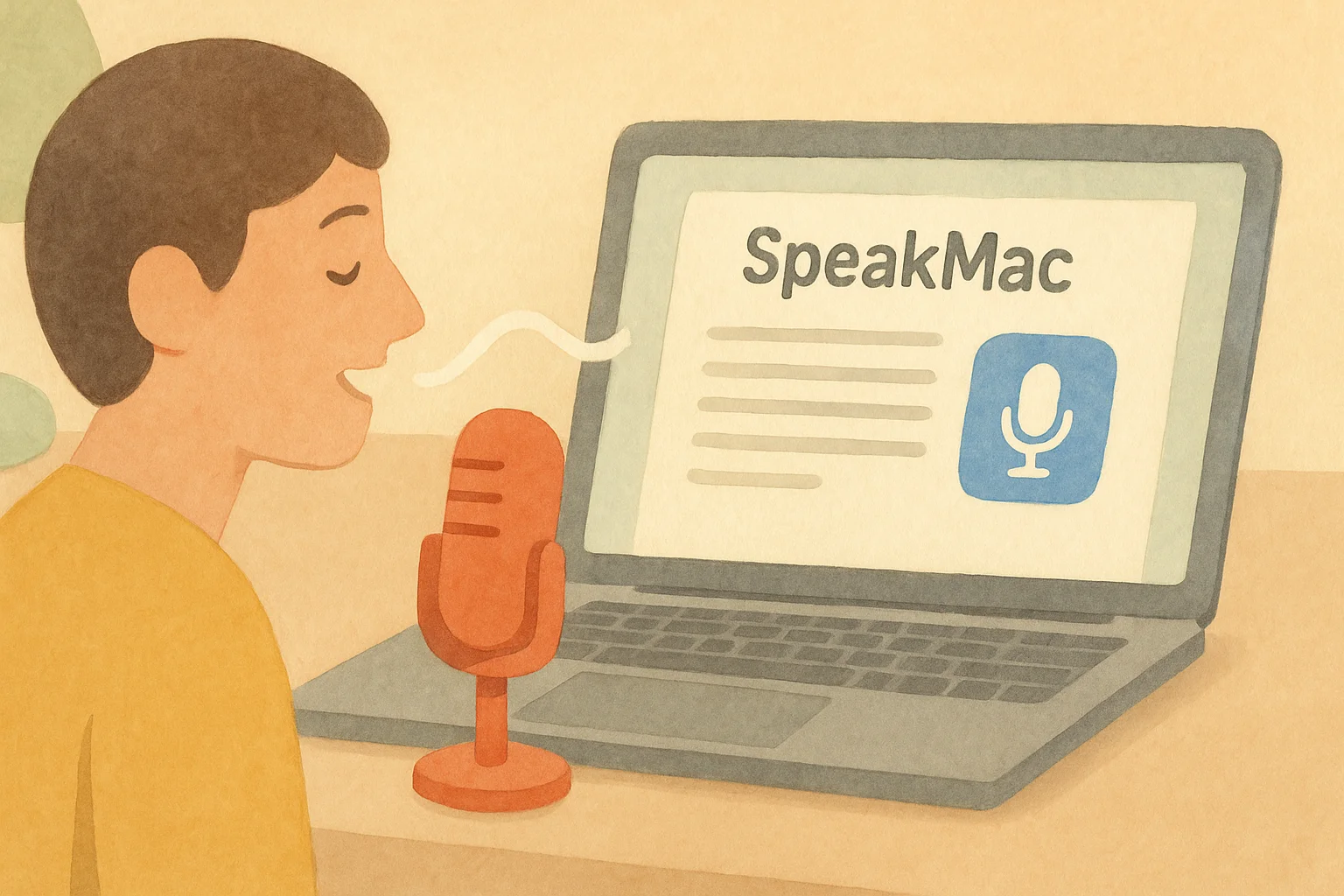
If you want voice to text for Mac, the most common mistake is picking the wrong category. A converter is useful for a file. A dictation app is useful for the cursor.
What most people actually mean by voice to text on Mac
Most Mac users are not looking for a lab demo. They want a voice-to-text app that lets them talk and see text appear where the cursor already is.
That usually means:
- notes
- Google Docs
- Microsoft Word
- Notion
- a browser text box
If that is your goal, the real question is not whether speech to text exists on Mac. It does. The question is whether the workflow feels fast enough to use every day. For the broader category page, start with speech to text for Mac, and for a buyer-style shortlist read Best Voice to Text Apps for Mac.
Where Speakmac fits
Speakmac is a Mac-native speech to text app built for live dictation. It runs locally on your Mac, writes into the active text field, and stays out of the way when you are not using it.
That makes it different from two other categories people often lump together:
- speech to text online tools, which usually need uploads or a browser tab
- audio to text converter tools, which are better when you already have a recording file
If you want to speak directly into Mail, Notes, Word, Google Docs, or Notion, the live dictation workflow is the right category.
A realistic speech-to-text workflow
The useful version is simple:
- Put the cursor where you want the text.
- Start dictation with the hotkey.
- Speak the rough draft naturally.
- Make a quick keyboard pass for names, links, or exact formatting.
That pattern works because voice is good at getting the draft out quickly. The keyboard is still better for the brittle details.
Speech to text online vs local speech to text
Speech to text online tools are fine for quick tests, especially if you only need a browser demo.
The tradeoffs are obvious once the workflow becomes daily:
- uploads
- internet dependence
- copy-paste friction
- usage limits or subscriptions
Local voice to text on Mac feels different. The text appears where you are already working, and you do not need to route the audio through another service just to draft an email or note.
Can you use speech to text in Word, Notes, and other Mac apps?
Yes. That is the point of a system-wide dictation app.
If you searched for things like:
- speech to text word
- speech to text in mac
- speech to text offline
- speech to text app for mac
the practical answer is the same. Use a Mac app that types into the current field instead of locking you into one browser window.
When an Online Converter Is the Better Tool
Use an online speech-to-text converter when:
- the audio is already recorded
- privacy is not a concern for that file
- you only need a one-off transcript
- you are comfortable uploading the audio
Use a local Mac dictation app when:
- the text should appear in the current app
- the content is sensitive
- you dictate often enough that copy-paste gets annoying
- you want the workflow to work without a browser tab
Is there a free speech to text option on Mac?
Yes.
macOS has built-in dictation, and Speakmac has a free tier so you can test the workflow with your microphone, apps, and writing habits before paying.
That matters because speech to text accuracy is not the only issue. The workflow has to feel good enough that you actually keep using it.
Privacy, speed, and the everyday tradeoff
If you handle sensitive writing, privacy matters. If you dictate all day, speed matters. If you hate subscriptions, pricing matters.
That is why the category is not just about "AI voice." The real buying questions are:
- does it work live
- does it work across Mac apps
- does the audio stay local
- is the pricing sane
That is the job Speakmac is trying to solve.
Final Recommendation
Use an online converter only when the input is already a file and the content is safe to upload. Use a transcription app when recordings, timestamps, and exports are the core job. Use live Mac dictation when you want spoken text to land directly in Mail, Notes, Docs, Word, Notion, Slack, Cursor, or a browser field.
For daily Mac writing, the live-dictation category is the one to evaluate first. The best test is not a demo sentence; it is whether the workflow works in the apps where you actually write.
FAQ
How do I use speech to text on Mac?
Install a dictation app, grant microphone and accessibility permissions, place the cursor where you want text to appear, and start speaking. If you want live speech to text in normal Mac apps, use a tool built for direct insertion instead of file transcription.
What is a good voice to text app for Mac?
A good voice-to-text app for Mac should work in the apps you already use, not just in a browser tab. Speakmac is built for that live workflow.
Is there speech to text free on Mac?
Yes. Apple offers built-in dictation, and Speakmac includes a free tier so you can test the workflow before unlocking the paid version.
Can ChatGPT convert speech to text?
Some ChatGPT clients can accept audio, but that is a different workflow from a local Mac dictation app. If your goal is private speech to text on Mac that works across Notes, Mail, Word, or your browser, use a dedicated dictation tool first and then paste the result where you need it.
What is the difference between speech to text online and offline speech to text?
Speech to text online tools usually depend on uploads and a browser workflow. Offline speech to text on Mac keeps the dictation layer local and is often better for privacy, speed, and daily use.