Choosing Speakmac Models and Cleanup
By Kiran Jd
Published · Updated
By Kiran Jd
Published · Updated
Use Fast for everyday dictation. If it keeps mishearing clear speech, try More Accurate with the same sentences. Clean Up Dictation edits the recognized text afterward; turn it on for polished prose or leave it off for rough notes and AI prompts.
| Writing | Settings |
|---|---|
| Quick notes, AI prompts | Fast · Cleanup off |
| Emails, readable drafts | Fast · Cleanup on |
| Speech Fast mishears | More Accurate · Compare with cleanup off |
| Prose needing fewer corrections | More Accurate · Cleanup on |
Open Models → Languages you speak → Edit and select the languages you speak. More Accurate focuses on one supported language; choose it from the language menu on its card.
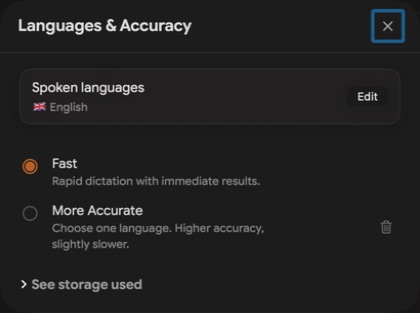
Compare a short message and a paragraph containing names or numbers. Keep the microphone and its position unchanged. Choose the setting that saves more editing than it adds waiting. Test cleanup separately: smoother prose can still contain a wrong word or changed meaning.
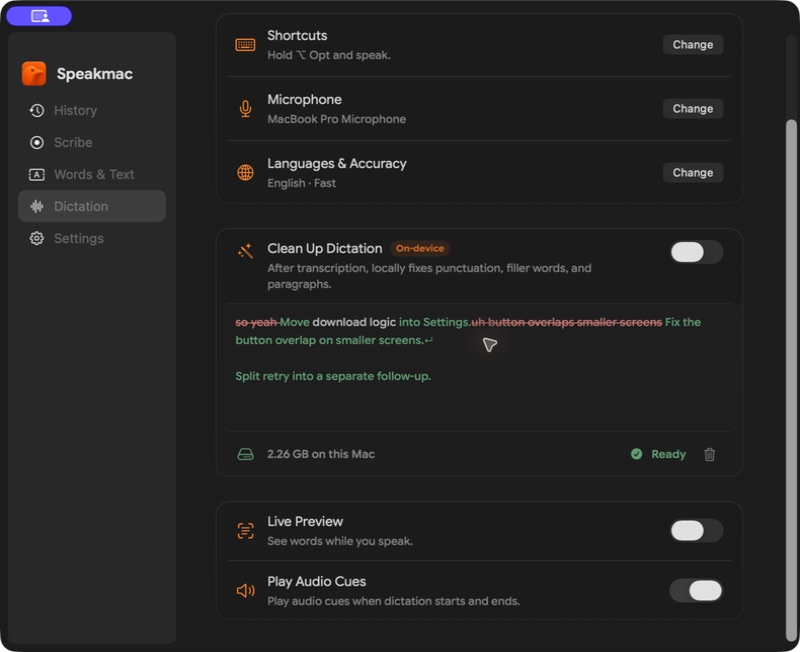
Clean Up Dictation currently handles supported English transcripts. Other languages retain their recognized text. Live Preview only shows progress while you speak; review the completed transcript after stopping.
Download the required packs before going offline. See storage used shows their size on your Mac. These combinations are manual settings; automatic task modes are not available.
Quiet or missing speech needs a microphone check, not a larger model. For recurring names, use Words & Text. If the transcript is correct but absent from your document, check text insertion.