Voice Prompting T3 Code on Mac
By Kiran Jd
Published · Updated
By Kiran Jd
Published · Updated
To use Speakmac with T3 Code on Mac, focus the prompt composer, dictate your task with your Speakmac shortcut, and review the text before sending. If direct insertion does not reach the composer, copy the transcript from Speakmac and paste it there. Leave automatic sending off while you check file names and instructions.
T3 Code is an app for working with coding agents. It is separate from the T3 web-development stack: your project does not need Next.js, Prisma, or tRPC to use this workflow. Speakmac supplies text; the coding agent selected in T3 Code handles the task after you send it.
Open a new thread, select your project, and click the composer labelled Ask for changes, send follow-ups, or attach images. Check the selected workspace and branch before sending anything. A prompt for the wrong checkout can produce changes in the wrong place even when its wording is correct.
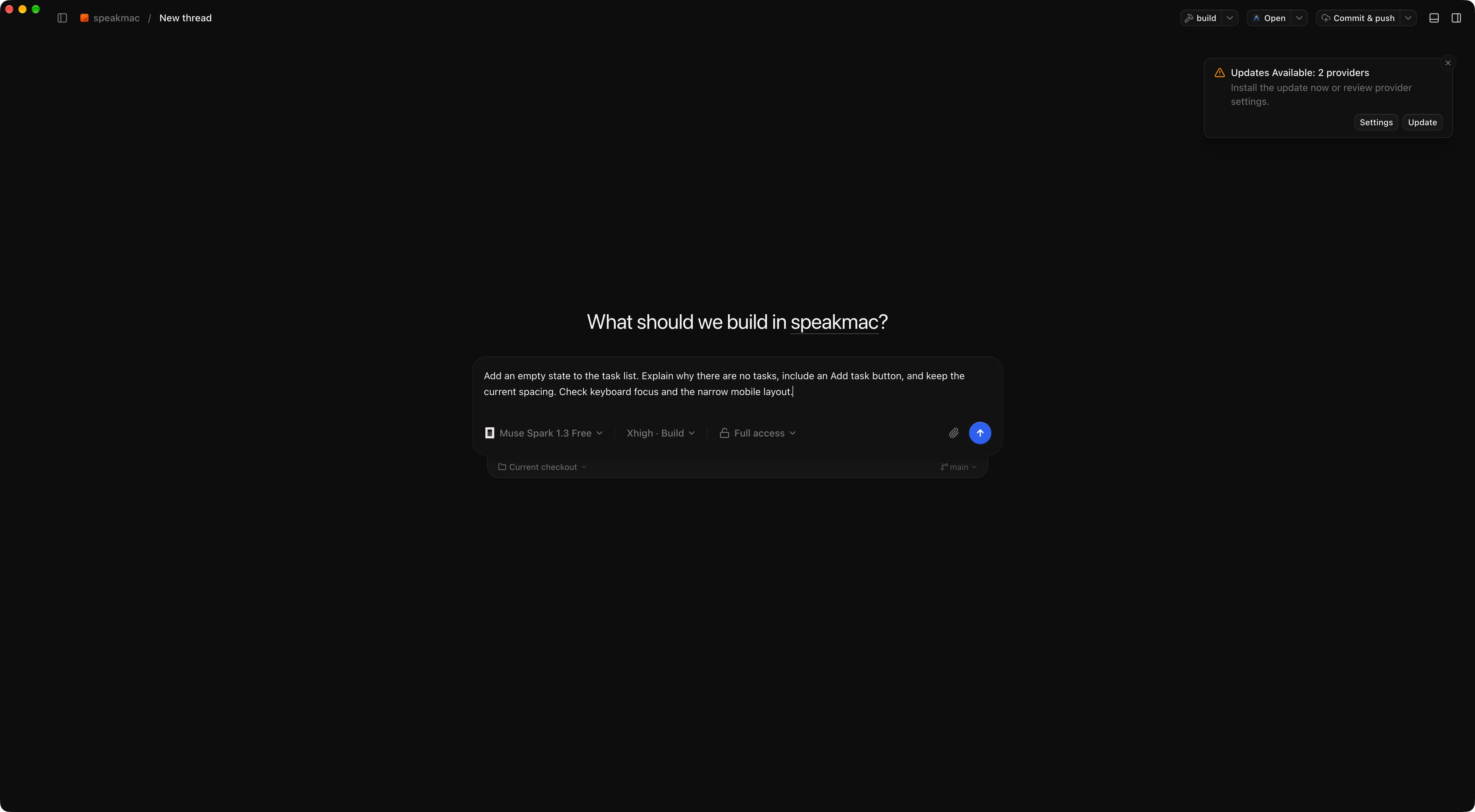
Composer check, September 29, 2026: this example was pasted into the installed T3 Code Alpha app and remained editable and unsent. This screenshot verifies the composer and paste fallback; it is not a microphone-to-composer dictation test. Interface labels and available providers can change between T3 Code versions.
Speakmac’s shortcut is configured in Speakmac, not in T3 Code. See shortcuts and recording help if a shortcut is unavailable or clashes with another app.
Start with a small, observable change:
Add an empty state to the task list. Explain why there are no tasks, include an Add task button, and keep the current spacing. Check keyboard focus and the narrow mobile layout.
For a bug, include the trigger and expected result:
After I change the filter, the old task count stays visible until I refresh. Make the count update with the list. Preserve the current filter when I open a task and return. Add a regression check for that sequence.
These are example briefs, not claims that a particular agent completed or tested the work. Review the resulting diff and run the relevant checks yourself.
| Speak the explanation | Type or attach the exact evidence |
|---|---|
| What you expected and what happened | Error output and stack traces |
| UI behaviour and edge cases | File paths, symbol names, and commands |
| Compatibility and scope constraints | API payloads, code, and screenshots |
Do not dictate credentials or private customer material into an agent prompt. A local transcription step does not make the subsequent agent request local: after you send from T3 Code, the selected provider’s processing policy applies. Speakmac’s privacy explanation covers its own transcription step.
First click back into the composer and try a short sentence. If Speakmac produced a transcript but insertion failed, use Copy Last Transcript in Speakmac and paste it into the composer. Our composer check above used that ordinary paste destination, without sending a task.
Check Speakmac’s Accessibility permission and shortcut configuration in the Help Center. If no transcript was produced, check the selected microphone and model first. Those are separate failures from T3 Code’s text field losing focus.
This workflow uses Speakmac as a separate Mac text-input tool. It does not depend on a T3 Code voice button, an extension, or a custom integration. Built-in voice availability may differ by T3 Code platform and version; check the current app rather than assuming a mobile feature exists on desktop.
Try Speakmac for Mac, or compare the workflow with voice input for OpenCode and voice prompting in Codex.