How to Dictate in VS Code on Mac
By Kiran Jd
Published · Updated
By Kiran Jd
Published · Updated
VS Code is not where you should try to speak every brace and comma.
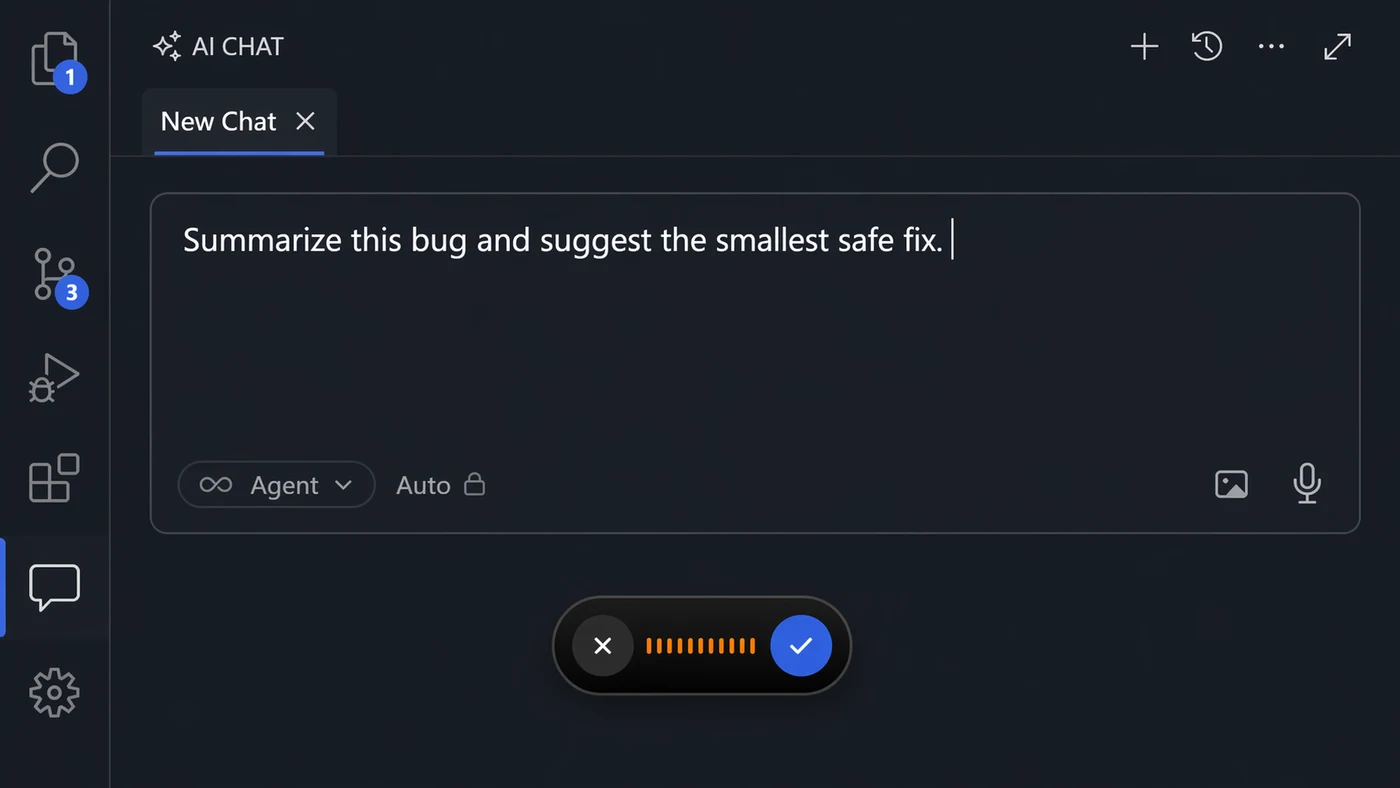
Dictation works best in VS Code when you use it for comments, TODOs, AI prompts, bug notes, commit-message drafts, and plain-language explanations. Type the exact syntax.
Click into a comment, markdown file, or prompt box. Use Apple Dictation for one sentence. If the text lands correctly, the basic setup is working.
That is the right first test. It tells you whether the issue is dictation itself or the specific editor field you are using.
For VS Code, the best first test is not a source file. Use a markdown note, a comment, or the AI chat input. Those fields behave more like normal writing surfaces, so they give you a cleaner read on whether dictation is useful before you bring code syntax into the picture.
If the text appears cleanly in the AI prompt box, the voice path is working. If it does not, check focus first. VS Code has many panels, tabs, terminals, and inputs, and it is easy to think the cursor is in one place when it is actually somewhere else.
Voice becomes frustrating when you force it into symbol-heavy editing. Function signatures, imports, cursor jumps, and tiny punctuation changes are usually faster with the keyboard.
The high-value voice work is different: explaining what the code should do, writing a review note, drafting a refactor prompt, or leaving a clear TODO for later.
This is especially true now that editors include AI panes. The prompt is often the slow part, not the typing of code itself. You need to explain the failure, the constraints, what should not change, and what a good fix looks like. That is plain language, and plain language is where dictation is useful.
Raw code is the wrong benchmark. If you judge dictation by whether it can accurately produce brackets, imports, and exact symbol names, it will feel clumsy. Judge it by whether it helps you write better prompts and clearer notes faster.
Use voice where you are already writing sentences. A good VS Code dictation workflow starts in the AI chat pane, a markdown scratch file, or a comment above the code you are about to change. Speak the problem in normal words first, then type the precise edits after the direction is clear.
Voice is useful for:
The keyboard should still handle:
The simple rule is: speak intent, type syntax.
For example, say: “This loading state can get stuck if the request fails after the optimistic update. Add a visible error state and keep the retry button small.” That is the kind of context that is slow to type and useful for both you and the AI pane. Once the plan is clear, use the keyboard for the code.
Speakmac is a better fit when the writing keeps moving between VS Code and the rest of your Mac. You can dictate a code comment, then a Linear update, then an email without changing the voice workflow.
It is also a cleaner privacy model for developer notes because the dictation layer is local-first instead of another cloud step in the middle of your workflow.
That matters most when your prompts include internal product details, unreleased features, customer reports, or private repository context. You may still send the final prompt to an AI tool, but the dictation step itself does not need to become another separate cloud hop.