Voice Dictation for Cursor on Mac: How to Prompt and Refactor Faster
By Kiran Jd
Published · Updated
By Kiran Jd
Published · Updated
The bottleneck in Cursor is often not the model. It is the speed at which you can explain what you want.
If you are using Cursor seriously, you are constantly writing prompts, editing prompts, describing bugs, outlining refactors, and leaving notes to yourself about what to change next. That is where voice dictation on Mac becomes useful.
The goal is not to speak raw syntax all day. The goal is to use voice where language is the bottleneck and keep the keyboard for the precise parts.
| Cursor task | Use voice? | Better workflow |
|---|---|---|
| AI pane prompts | Yes | Dictate the context, constraints, and success criteria. |
| Refactor briefs | Yes | Say what should change, what should stay, and what tests matter. |
| Comments and TODOs | Yes | Use voice for rough natural-language thinking. |
| Exact code syntax | Usually no | Type symbols, identifiers, paths, and tiny edits. |
| Private codebase context | Yes, with care | Use a local dictation layer like Speakmac, then decide what to send to the AI tool. |
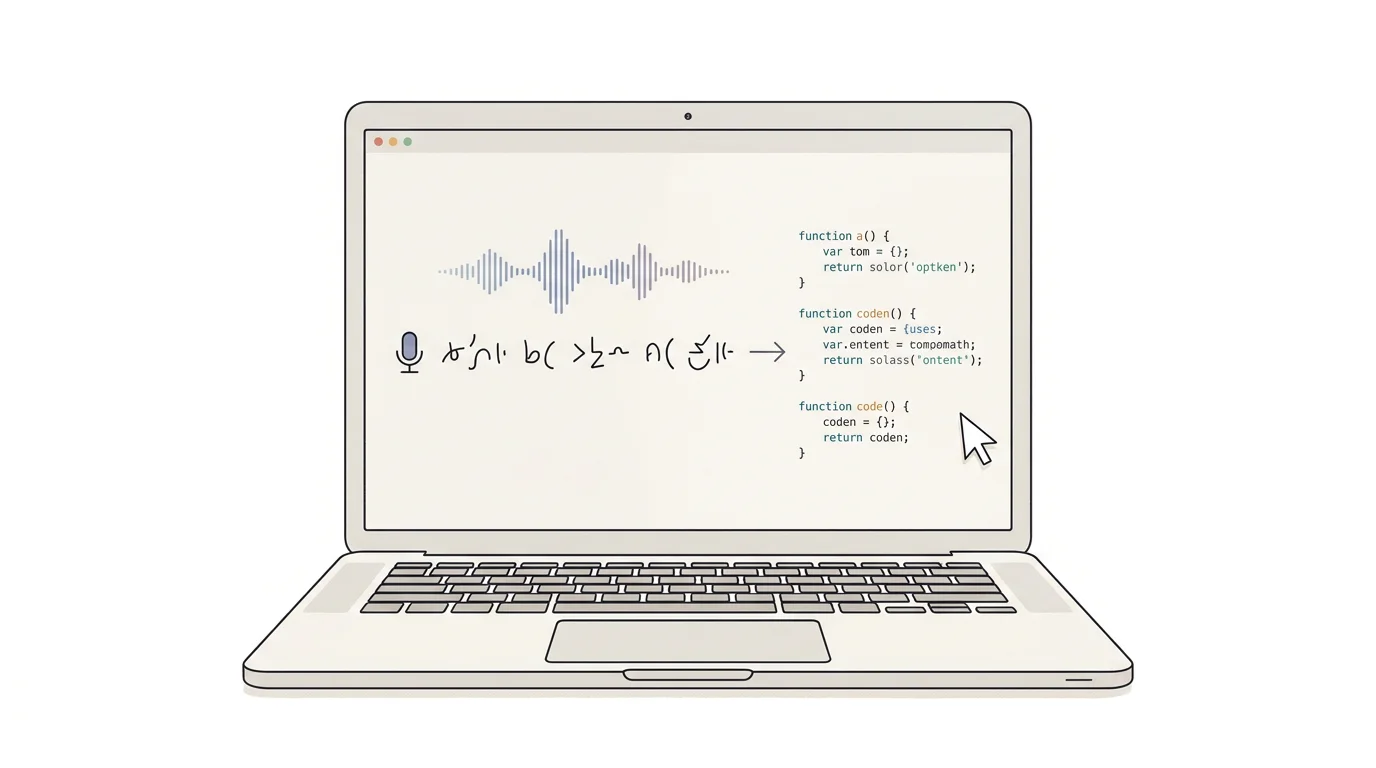
Voice dictation works best in Cursor when the thing you are writing is closer to a brief than to code. That includes the AI pane, refactor instructions, TODOs, review notes, and rough explanations of what is broken.
The common thread is that these are all language-heavy tasks:
These jobs are closer to conversation than punctuation. That is why they benefit from dictation.
The AI pane is the most natural place to start. Instead of typing a cramped prompt like “fix loading bug,” you can speak the actual context: what is happening, what you already tried, which files are likely involved, and what should stay unchanged. Better prompts usually lead to better changes.
Keep typing when the work depends on exact symbols, exact names, or fast visual navigation. Cursor is still a code editor, and code editors reward precision.
Use the keyboard when you are doing:
Trying to force voice into every part of coding is what makes voice coding feel bad. The better workflow is hybrid.
This is not a limitation to fight. It is the workflow boundary. Voice is strongest when you are explaining intent. The keyboard is strongest when you are applying exact edits. Cursor works well when you let each input method do its own job.
Use this pattern:
Dictate the high-level request:
"Refactor this settings panel so the fetch logic moves into a hook, keep optimistic updates, and add an error state for network failures."
That is much faster to say than to type carefully.
The useful detail is not just the task. It is the constraint. Say what should move, what should stay, and what behavior must not regress. That is the part most people under-type when they are in a hurry.
Once the structure is clear, use the keyboard for the symbol-heavy work. Let voice handle the idea, and let your fingers handle the punctuation.
This avoids the worst version of voice coding: fighting the editor over tiny syntax details. You can still use Cursor's AI features for implementation, but you are feeding them better context first.
Voice is also strong after Cursor generates code. You can dictate what feels wrong, what edge case is missing, or what you want changed in the next prompt.
This is often where dictation saves the most time. Review thoughts are usually sentences, not code. If the generated change misses a loading state, forgets a permission case, or touches too much surface area, you can say that plainly and ask for a narrower follow-up.
If raw code dictation feels awkward, dictate comments first:
Then convert those comments into code.
This works because comments are allowed to be rough before they become implementation. They give you a place to think in natural language without pretending that spoken punctuation should be as good as typing.
Speakmac is a good fit for Cursor on Mac because it is optimized for direct dictation into the active text field.
That matters in three places:
The offline setup also matters for developers. If you are speaking through internal codebase details, customer issues, or unshipped product ideas, keeping the dictation layer local is a cleaner privacy model than routing all of that through an additional cloud service.
You may still choose to send the final prompt to an AI tool. The point is that your dictation layer does not have to be another cloud service in front of that. For developer work, reducing the number of places your raw spoken context travels is a meaningful improvement.
Speak intent.
Type syntax.
That one rule avoids most frustration.
If you try to dictate every brace, comma, and parenthesis, you will slow yourself down. If you use voice for prompts, reasoning, comments, and refactor instructions, you usually speed up.
Cursor dictation is worth it when you routinely write more explanation than code. That is common for people using AI agents, writing detailed prompts, reviewing generated changes, or documenting decisions as they work.
It is especially useful when you:
It is less useful if your work is mostly tiny manual edits or rapid symbol manipulation.
Voice dictation for Cursor on Mac is not about replacing the keyboard. It is about removing the prompt-writing bottleneck.
| If you want to... | Best next step | Why |
|---|---|---|
| Speak architecture, prompts, and refactor notes | Try Speakmac | It works in Cursor text fields and keeps the dictation layer local. |
| Learn the broader coding-by-voice pattern | Read How to dictate code on Mac | This separates intent dictation from syntax editing. |
| Prompt AI coding tools faster | Compare voice prompting Codex on Mac and voice prompting Claude on Mac | Cursor is one surface in a broader voice-to-agent workflow. |
| Protect internal codebase context while dictating | Read private dictation apps for Mac | Spoken prompts often contain proprietary details. |
| Decide whether paid dictation is worth it | Use the Mac dictation pricing guide | Developer workflows tend to reward daily reliability over feature sprawl. |