How to Dictate in Slack on Mac
By Kiran Jd
Published · Updated
By Kiran Jd
Published · Updated
Slack is a fast place to type, which is exactly why dictation has to stay simple.
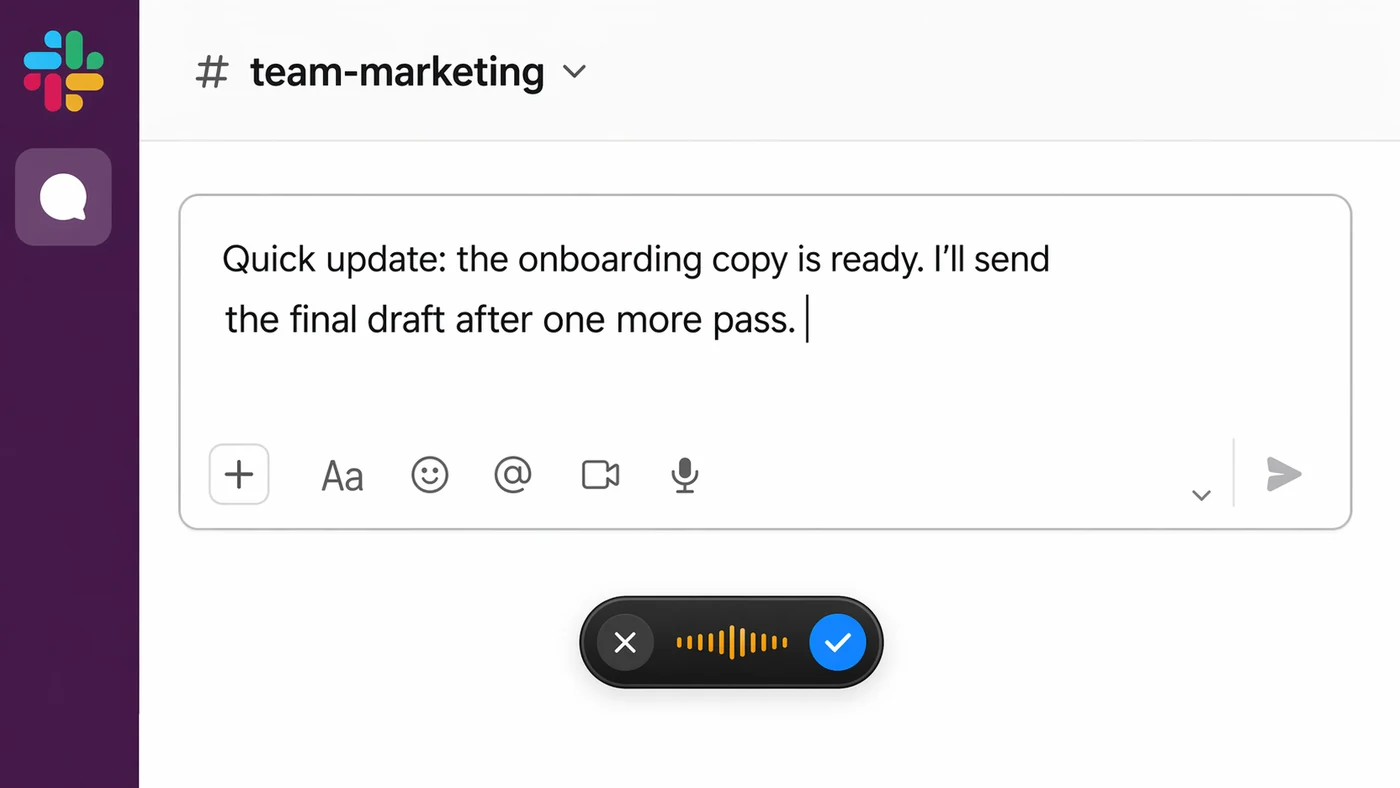
Use voice for the parts that sound like normal speech: updates, replies, recaps, handoffs, and longer messages you would otherwise delay. Keep the keyboard for channel names, emoji, tiny edits, and anything where one wrong word would be annoying.
Click into Slack's message box, press your Mac dictation shortcut, and speak one plain sentence. Send it only after you read it once.
That is enough for occasional messages. It works best when you are writing in the main composer and the sentence is short.
The key is to test in the same place where you normally write. A short message in the main composer tells you whether Slack is accepting dictated text cleanly. A thread reply tells you whether focus is staying inside the reply box. A DM tells you whether the problem is Slack-wide or only tied to one channel, thread, or browser window.
Do not start by changing every Mac setting. Start with one boring sentence, in one Slack text box, with no mentions or links. If that works, the basic path is fine and you can focus on making the workflow faster.
Slack writing jumps around. You may be replying in a thread, editing an earlier message, writing a DM, or moving between Slack and a doc. Built-in dictation can work, but the flow can feel fragile when focus changes or a shortcut opens the wrong thing.
Slack also has many small UI targets. Voice is not the right tool for choosing emoji, tagging the exact person, fixing punctuation, or pasting a link into the right place.
This is why Slack dictation should stay message-first. Dictate the part you would naturally say to a teammate: the update, the decision, the next step, or the recap. Then use the keyboard for Slack-specific details. Trying to dictate the whole interaction, including mentions, reactions, and channel navigation, usually makes the message slower than typing it.
Threads need a little extra care. If Slack focus moves away from the reply box, dictation may land in the wrong place or not land at all. Before speaking a longer reply, click once inside the exact text field and look for the cursor. That small check prevents most frustrating mistakes.
Use Slack dictation for messages that are long enough to benefit from speaking, but not so delicate that one wrong word changes the meaning. Status updates, async handoffs, meeting recaps, and “here is what I found” notes are ideal. They are usually plain language, and they often get delayed because typing them feels like a small chore.
Keep names, links, issue IDs, dates, and channel references on the keyboard. Those details are easy to mistype by voice and easy to correct manually. The same applies to emoji and reactions. Dictation should get the message out; Slack’s interface can still handle the small pieces around it.
A reliable pattern is:
This keeps dictation useful without making Slack feel slower.
For longer updates, dictate in two passes. First speak the rough version. Then pause, read it, and make one manual cleanup pass before sending. That is usually faster than trying to speak a perfect Slack message from the start.
Speakmac is useful when Slack is one part of your writing day, not the only place you type. You can use the same hotkey in Slack, email, docs, notes, and AI tools without switching into a browser-only voice mode.
That matters for daily work. Speak the update in Slack, then use the same workflow for the follow-up email or planning note.
The benefit is consistency. You do not have to remember whether the current app has its own dictation button, whether the browser has microphone access, or whether a Slack thread behaves differently from a document. Click where the text should go, use the same hotkey, and review before sending.