Voice Dictation for AI Prompts on Mac: A Real Workflow
By Kiran Jd
Published
By Kiran Jd
Published
AI prompting is one of the clearest places where Mac dictation helps.
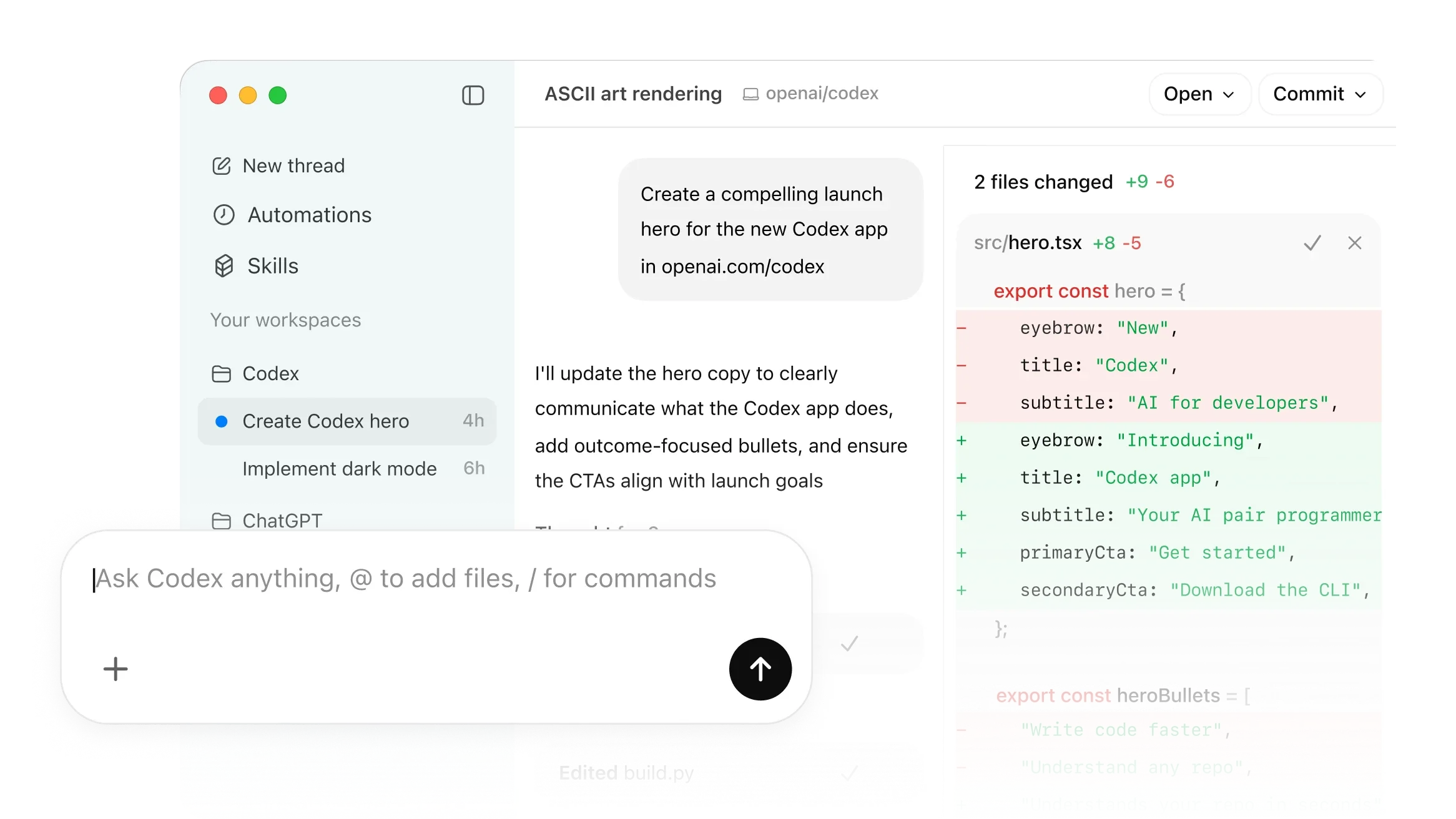
Not because you should dictate code symbol by symbol. That is usually a bad workflow. The useful part is everything around the code: context, intent, constraints, edge cases, review notes, and what should not change.
That kind of text is slow to type and easy to explain out loud.
A weak AI prompt is short because it is missing context.
"Fix the bug" is fast to type, but usually not enough. A better prompt explains what broke, where the behavior appears, what the user expected, what has already been tried, and which parts of the system should stay untouched.
That is a paragraph, not a command.
Voice is good at paragraphs.
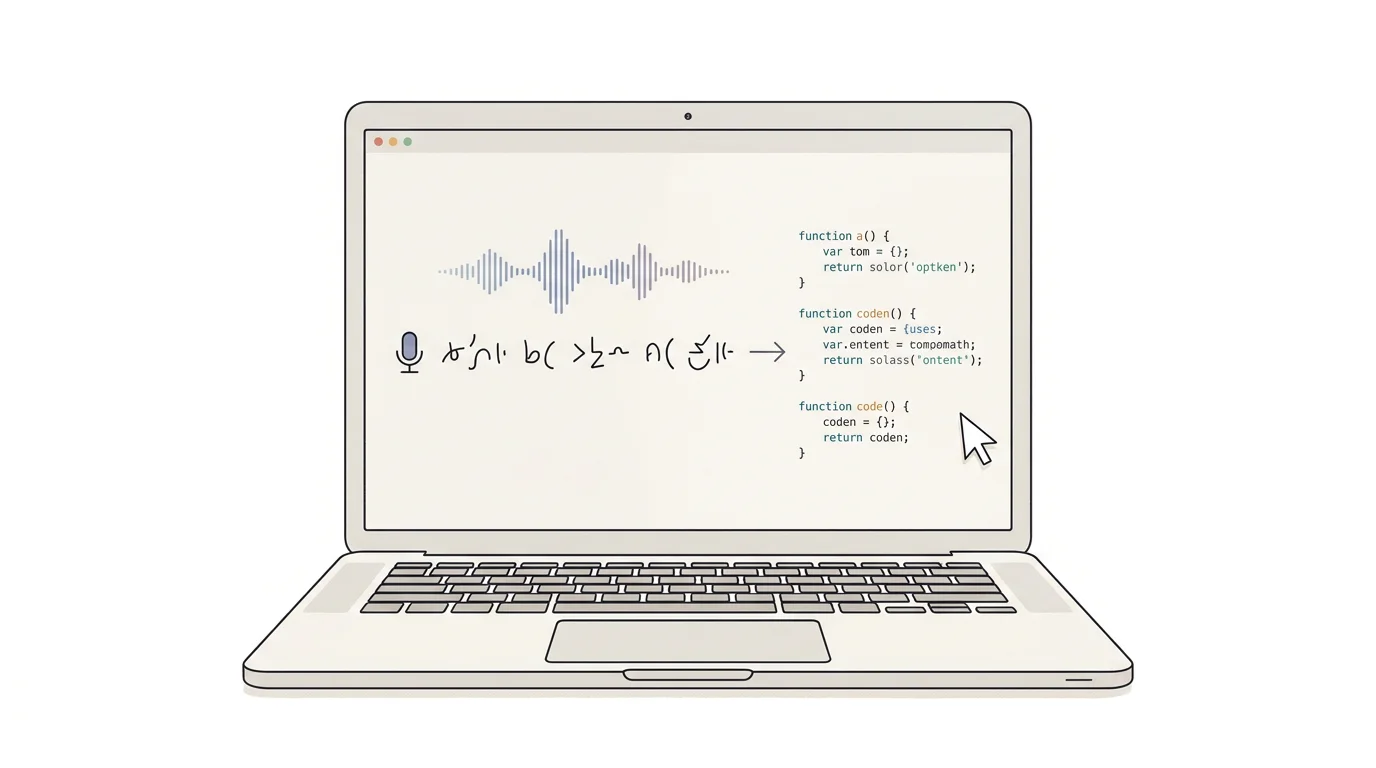
The workflow is simple:
That last step matters. Dictation should get the bulk of the thought out quickly. The keyboard should still handle precision.
For example, a useful spoken prompt might be:
The settings page is showing the upgrade banner even after the user activates a license. Trace the entitlement refresh path, check whether the cached license state is stale, and keep the fix limited to the paywall state model. Do not redesign the settings page.
That is the sort of thing people often understand clearly but delay writing because it is a lot of text.
Voice dictation is strongest for prompt parts like:
These are sentence-shaped tasks. They are not exact syntax tasks.
That is why Speakmac fits naturally into AI-heavy work. You are not replacing the coding agent. You are feeding it better context faster.
Use the keyboard for anything that needs exactness:
Trying to dictate every symbol turns voice into friction. A better rule is: speak intent, type precision.
That was one of the lessons from the early Speakmac coding experiments. I tried a more elaborate VS Code workflow that captured snippets, paths, selections, and timestamps. Parts of it worked, but the product was too complex for the real job.
Most developers did not need a new voice-coding interface. They needed a faster way to explain what they already knew.
AI work does not stay in one app.
A task might start in Linear, move to Cursor, get clarified in Slack, become a Codex prompt, and end as a pull request note. If dictation only works in one surface, the workflow breaks every time the work moves.
Speakmac is useful because the same hotkey works across the Mac. The target can be a browser prompt box, a native app, a markdown note, an issue tracker, or an email.
That sounds mundane. It is exactly why it sticks.
AI prompts often contain sensitive context: private codebase details, customer reports, unreleased product plans, pricing ideas, support cases, or internal architecture.
You may still choose to send the final prompt to an AI tool. But the dictation layer does not need to be another cloud service before that.
With Speakmac, the voice-to-text step happens locally on your Mac. That keeps the prompt-drafting step simpler and reduces the number of places your raw spoken context travels.
Do not aim to dictate everything.
Use Speakmac when the prompt is really an explanation:
Then use the keyboard to tighten the final prompt.
That is the practical AI-prompting workflow: voice for context, keyboard for control.