| Decision factor | Speakmac | Superwhisper | MacWhisper | macOS Voice Control | Windows + Dragon |
|---|---|---|---|---|---|
| What it replaces best | Old Dragon-on-Mac style live dictation | Premium dedicated dictation workflow | Dragon only if your real job is recordings, not live typing | Built-in voice control and basic dictation | Old Dragon feature set |
| Workflow shape | Speak directly into the app you are using | Dedicated dictation app with broader paid workflow surface | Import or record audio, then transcribe and clean it up | Control the Mac and dictate with Apple's accessibility layer | Run Dragon outside macOS and accept the platform switch |
| Local / offline fit | Core workflow after the one-time model download | Local-first workflows are a major part of the appeal | Strong fit if you want local transcription of files | Built into macOS | Works offline on the Windows desktop path |
| Main tradeoff | Not trying to be full voice-control software | Higher price ceiling than Speakmac | Not the best fit for cursor-first dictation | Not a dedicated dictation product | Highest friction, cost, and upkeep |
| Best for | Mac users who want the closest practical replacement | Users willing to pay more for a premium dictation stack | Users whose work starts from recordings | Users who need hands-free navigation | Users who truly need Dragon-specific workflows |
Dragon Dictate for Mac is gone — Nuance discontinued the Mac line in October 2018 and never returned. So the phrase "Dragon alternative for Mac" now covers a few different jobs at once: direct dictation into Mac apps, built-in accessibility control, transcription of recorded audio, or keeping old Dragon workflows alive by leaving macOS. This page compares all five replacement paths.
If you want the story of what happened to Dragon on Mac plus the closest single replacement, read Dragon for Mac in 2026: Discontinued — and What Actually Replaces It.
Last checked: June 11, 2026
Quick Answer
If you miss Dragon for Mac because you want to dictate directly into Mac apps, start with Speakmac. If you need hands-free computer control, evaluate macOS Voice Control. If your work starts with recordings, evaluate MacWhisper. If you specifically need Dragon's current professional product line, the practical path is Windows, not native macOS.
Why "Dragon for Mac" Is a Special Case
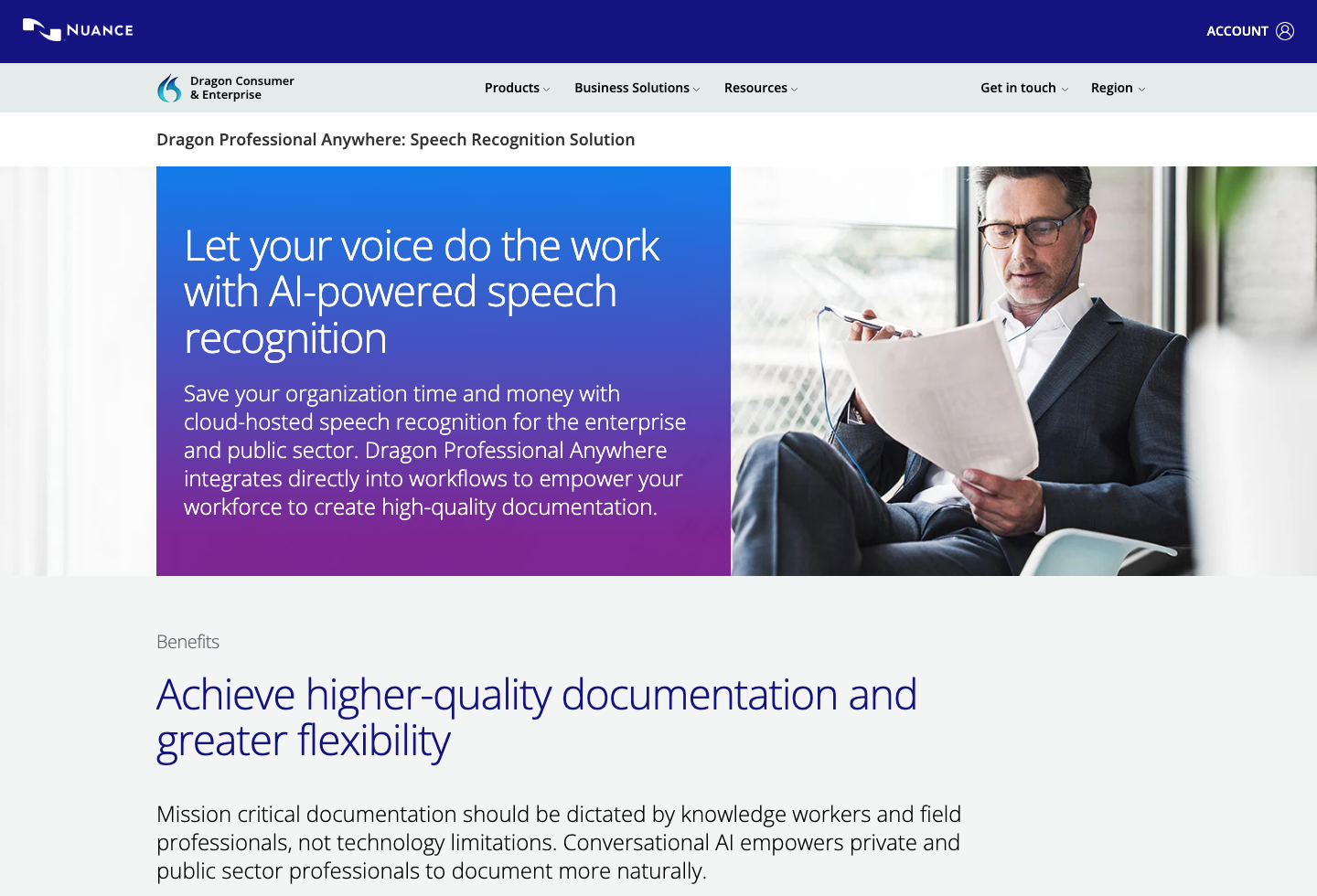
Nuance's current Dragon Professional v16 product is positioned for Windows 11 and Windows 10. That matters because Mac buyers searching for Dragon are often looking for a product category that no longer exists in the same native Mac form.
So the useful question is not "which Mac app is Dragon with a different logo?" It is "which part of Dragon did you actually use?"
- live dictation into apps
- custom vocabulary and repeated phrases
- accessibility control
- recorded-audio transcription
- professional Windows documentation workflows
The answer changes depending on that job.
1. Speakmac: The Closest Match for Most Mac Users
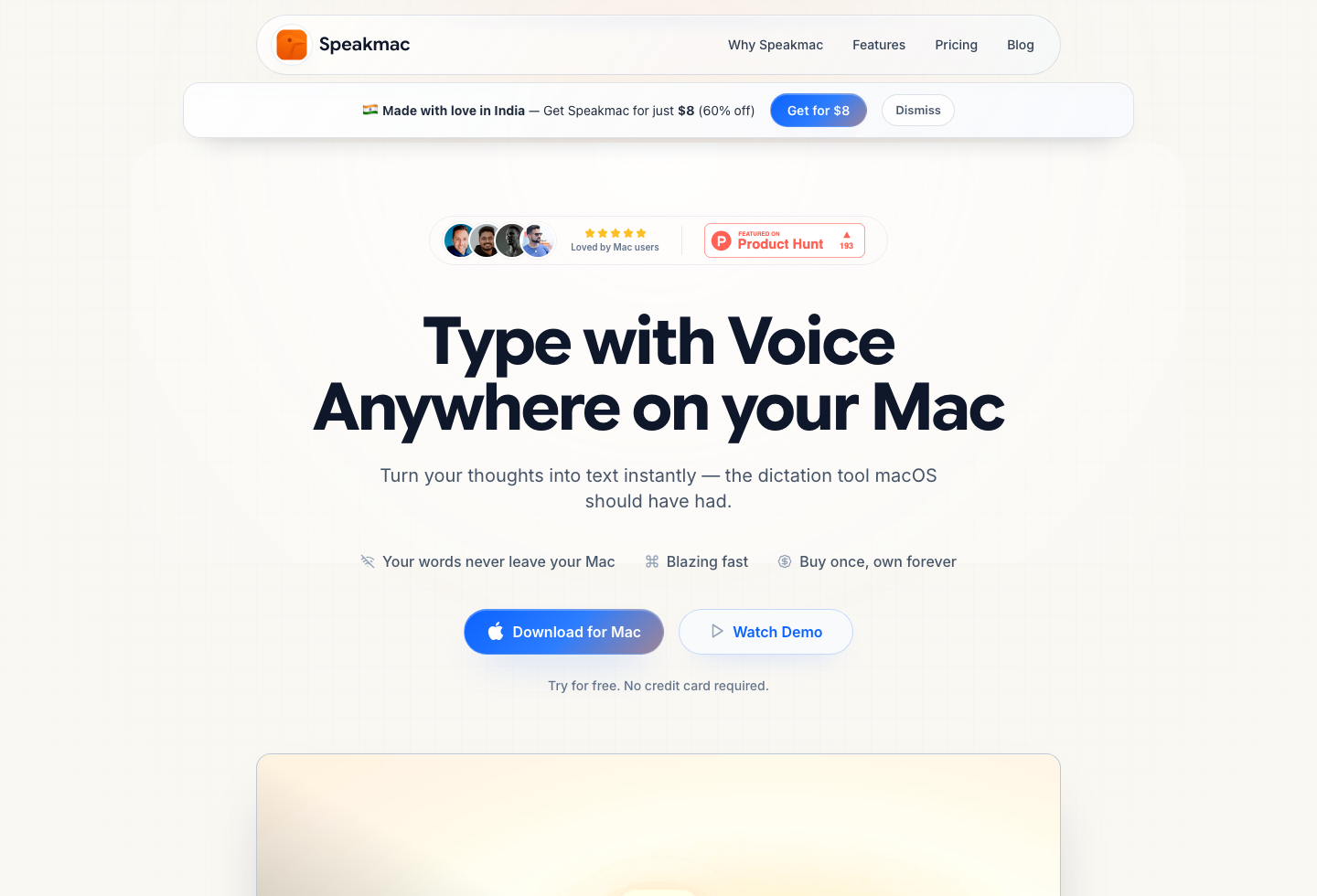
Speakmac is the closest fit if what you actually miss is simple: put the cursor in any Mac app, speak, and keep writing.
It now covers much more of the daily workflow than older Dragon comparison pages assumed. In addition to local dictation, it supports configurable hotkeys, hands-free toggle mode, a floating live preview, dictation commands, custom word replacements, snippets, regex cleanup, and optional privacy mode if you do not want local history kept.
That still does not make it a full voice-control layer or enterprise automation tool. It makes it a direct replacement for the everyday Dragon-on-Mac habit.
If that is your exact decision, read Dragon for Mac in 2026: Discontinued — and What Actually Replaces It.
2. Superwhisper: The Premium Dictation Alternative
Superwhisper belongs on the shortlist if you want a dedicated dictation product and are willing to pay more for a broader premium workflow.
The reason it belongs here is not that it replaces Dragon in the old sense. It belongs here because it is another serious Mac dictation option for people who know they want dedicated voice input, not Apple's built-in layer and not file-first transcription.
If you are deciding between the two directly, read Speakmac vs Superwhisper Pricing (2026).
3. MacWhisper: Best If Your Real Need Is Transcription
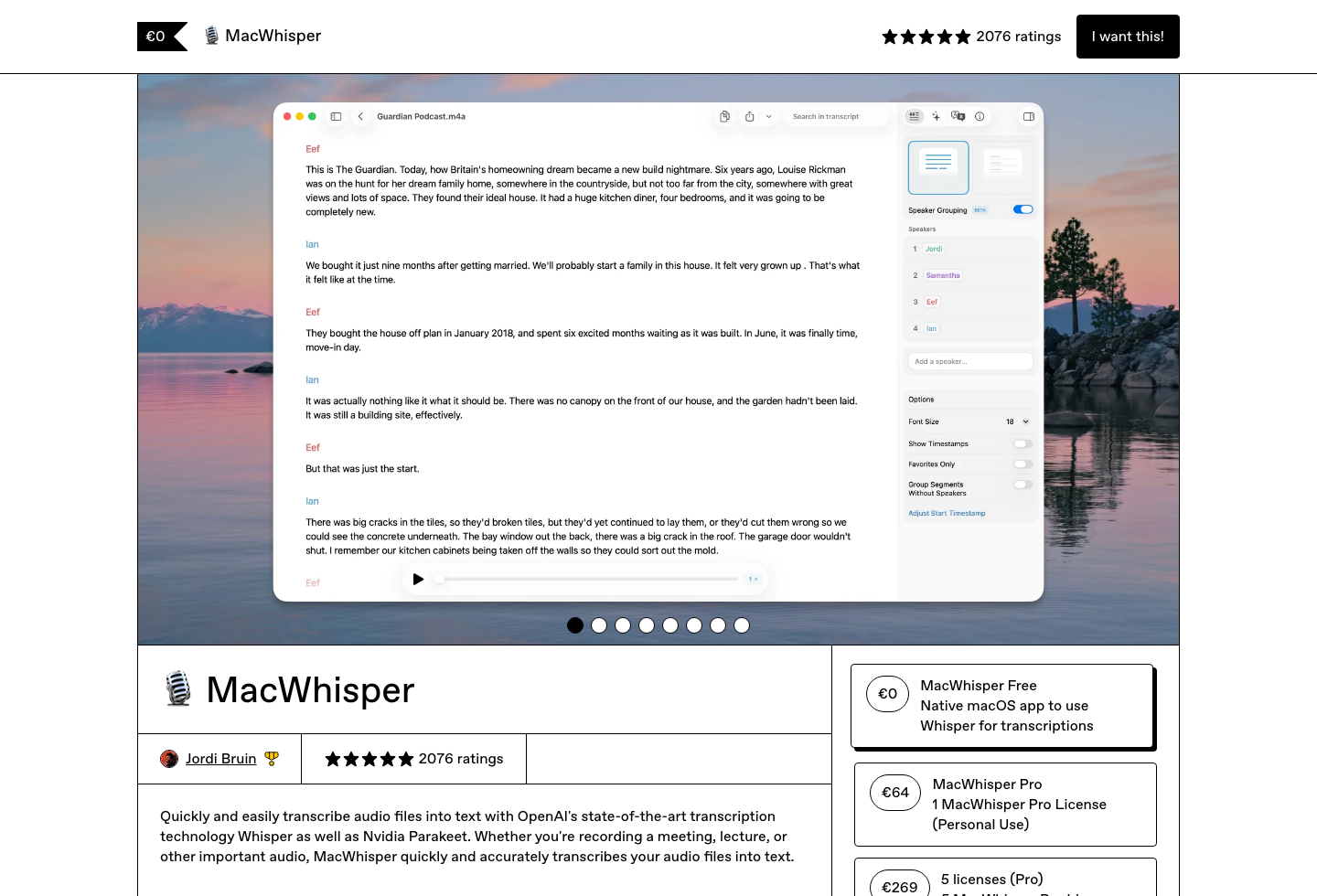
Many people searching for a Dragon alternative are not actually trying to dictate into a blinking cursor all day. They are trying to turn meetings, interviews, or saved audio into text.
That is where MacWhisper is the more relevant category. It is a strong option when the workflow starts from recordings and cleanup, not from live dictation inside the app you are already using.
If that is your decision, read Speakmac vs MacWhisper.
4. macOS Voice Control: Built In, Broad, and Free
macOS Voice Control is the right answer when hands-free control matters as much as dictation. It can click buttons, expose number overlays, and help users who need operating-system-level navigation.
Apple documents Voice Control as an accessibility feature that can navigate the Mac, dictate and edit text, and create custom vocabulary. The tradeoff is that it is not a dedicated dictation product. It is useful for occasional typing and accessibility-wide control, but heavy daily writing often benefits from a tool built specifically for text entry.
If full hands-free computer control is your requirement, this is the path to evaluate before any dedicated dictation app.
5. Windows + Dragon: Maximum Compatibility, Maximum Friction
Running Dragon through Windows is still the path for people who genuinely need Dragon-specific command-and-control workflows badly enough to accept the cost and maintenance.
That route preserves the Dragon software, but it also preserves the overhead: Windows licensing, virtualization or a separate machine, setup time, and ongoing upkeep. It only makes sense if Dragon's specific Windows feature set is genuinely essential.
Which Alternative Fits Which User?
Choose Speakmac if you want the closest replacement for old Dragon-on-Mac dictation without leaving the Mac workflow.
Choose Superwhisper if you want a premium dedicated dictation option and do not mind a higher price ceiling.
Choose MacWhisper if your real workflow starts from recorded audio rather than live writing.
Choose macOS Voice Control if accessibility-wide hands-free control matters more than having a dedicated dictation product.
Choose Windows + Dragon only if you specifically need Dragon's legacy Windows capabilities badly enough to accept the platform switch.
Final Recommendation
There is no single "best Dragon alternative for Mac" unless you first separate the job you are trying to do.
| If you used Dragon for... | Best next step | Why |
|---|---|---|
| Daily live dictation into Mac apps | Start with Speakmac | This is the closest practical replacement for the old Dragon-on-Mac habit. |
| A focused Dragon-on-Mac replacement read | Read Dragon for Mac in 2026: discontinued + replacement | It covers what happened to Dragon on Mac and the closest single replacement. |
| Premium dedicated dictation | Compare Speakmac vs Superwhisper | Superwhisper is the stronger alternative when broader paid modes matter. |
| Recorded audio transcription | Compare Speakmac vs MacWhisper | File transcription is not the same job as live dictation. |
| Hands-free computer control | Evaluate macOS Voice Control first | Accessibility-wide control is different from a dictation replacement. |
| Pricing and ownership clarity | Use the Mac dictation pricing guide | Dragon replacement searches often mix one-time, subscription, and platform-switch costs. |
Reviews
What people say after switching
I'm not a native English speaker but I use English a lot for work. The accuracy genuinely surprised me. Even when I mumble, restart sentences, or talk fast, it keeps up really well. It's lightweight, thoughtfully built, and works great in German as well, even with Anglicisms.

Philip Langenbrink
CEO/Co-Founder @ studiis
As a former designer of iOS apps, I can tell you: it looks really great.

Ken Yarmosh
Author, App Savvy (O'Reilly)
It's improved a lot! I tried it with background noise using AirPods, and it captures text correctly. Even when playing a cricket commentator video, it captured the audio perfectly.

Varun BR
Staff Engineer
You can tell this was crafted with care - the animations, the simplicity, and the way it fits into macOS like it's always been there. Planned to use it daily.
L
Lilou Lane
Product Hunt user
I tried both Siri and SpeakMac. I spoke very fast with low volume.Siri couldn't understand, but SpeakMac did. That was my 'wow' moment.

Manish
Developer

The accuracy is way better than I expected, and I love how seamlessly it integrates with Mac. I've been looking for something like this that doesn't feel clunky.

Eworitse
Community Member
I didn't expect to use SpeakMac this much, but it's become my go-to for writing content ideas, captions, and quick drafts. It picks up my voice perfectly, even when I'm talking fast. It feels effortless - like my Mac finally understands how I work.

Portia
Marketing Lead
Dude i am lovin it. My productivity is really increased. Even a few times while speaking, if i mumble and re speak partial sentence, it understands that very well adjusts on its own.

Shubham
Engineering Manager
I'm not a native English speaker but I use English a lot for work. The accuracy genuinely surprised me. Even when I mumble, restart sentences, or talk fast, it keeps up really well. It's lightweight, thoughtfully built, and works great in German as well, even with Anglicisms.
Philip Langenbrink
CEO/Co-Founder @ studiis
As a former designer of iOS apps, I can tell you: it looks really great.
Ken Yarmosh
Author, App Savvy (O'Reilly)
It's improved a lot! I tried it with background noise using AirPods, and it captures text correctly. Even when playing a cricket commentator video, it captured the audio perfectly.
Varun BR
Staff Engineer
You can tell this was crafted with care - the animations, the simplicity, and the way it fits into macOS like it's always been there. Planned to use it daily.
L
Lilou Lane
Product Hunt user
I tried both Siri and SpeakMac. I spoke very fast with low volume.Siri couldn't understand, but SpeakMac did. That was my 'wow' moment.
Manish
Developer
The accuracy is way better than I expected, and I love how seamlessly it integrates with Mac. I've been looking for something like this that doesn't feel clunky.
Eworitse
Community Member
I didn't expect to use SpeakMac this much, but it's become my go-to for writing content ideas, captions, and quick drafts. It picks up my voice perfectly, even when I'm talking fast. It feels effortless - like my Mac finally understands how I work.
Portia
Marketing Lead
Try the workflow
See if Speakmac fits your Mac before paying.
Download the app, dictate in the places you already write, and only unlock if the local workflow actually works for you.
Related Posts
- Dragon for Mac in 2026: Discontinued — and What Actually Replaces It
- Best Offline Dictation Apps for Mac in 2026
- Speech to text for Mac
- Apple Dictation vs Speakmac
- Best Voice to Text Apps for Mac
- Mac Dictation App Pricing: One-Time vs Subscription Tools
- Speakmac vs Paraspeech: Private Mac Dictation Compared
- Speakmac comparisons hub