How to Dictate in Microsoft Word on Mac
By Kiran Jd
Published · Updated
By Kiran Jd
Published · Updated
Microsoft Word is one of the easiest places to start using dictation on Mac.
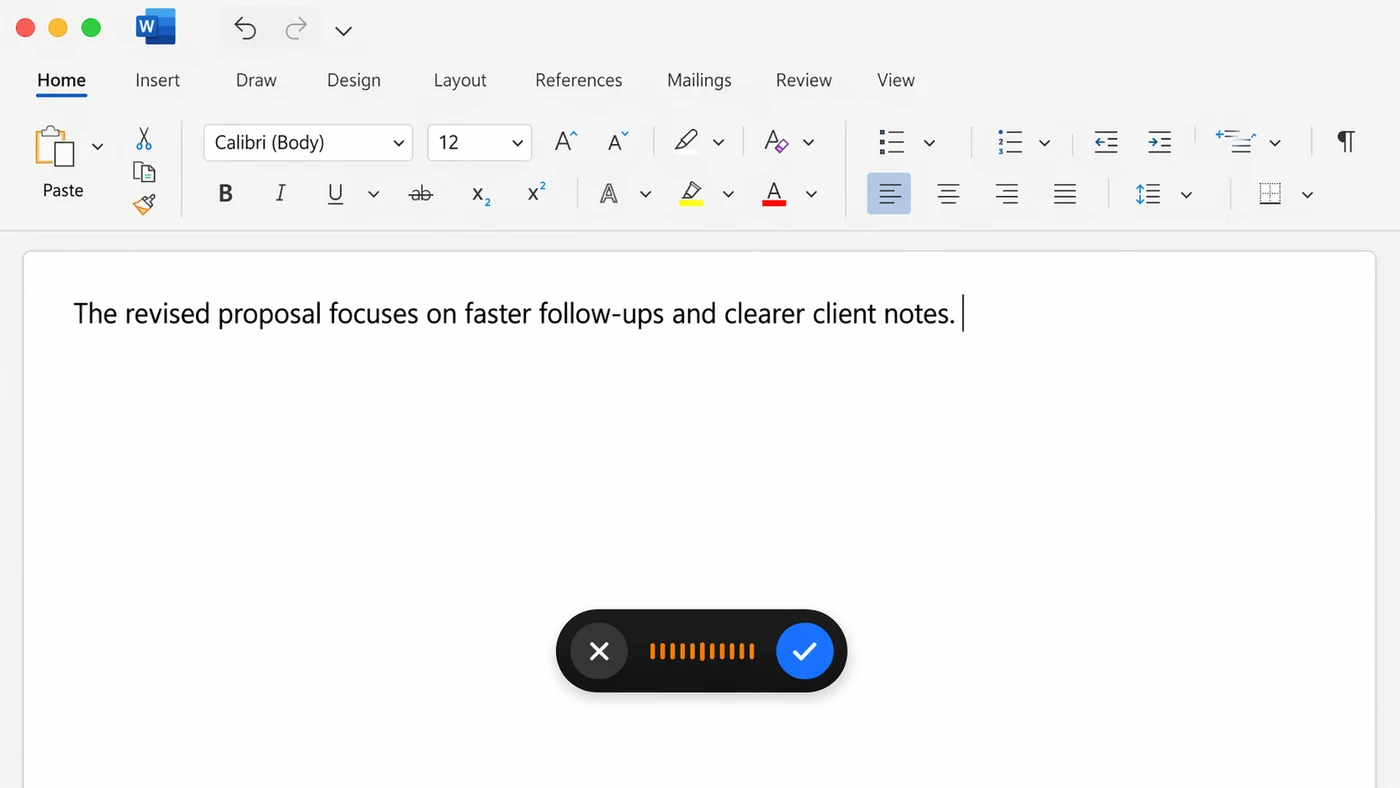
The best use is not perfect final copy. It is getting the first version of a paragraph, proposal, report, memo, or client note onto the page faster.
Open a document, click where the sentence should go, and try Word's built-in Dictate button or Apple Dictation.
For short drafts inside one document, that may be enough. Speak a paragraph, then do the cleanup with the keyboard.
This is the right baseline because Word already has a reasonable dictation path for simple document drafting. If you only need to speak a paragraph into one document once in a while, there is no need to complicate it.
Start with a plain paragraph. Avoid headings, comments, tables, citations, and track changes for the first test. You want to know whether the spoken words land where the cursor is. Once that works, you can decide whether Word's built-in flow is enough for your daily writing.
Word has a lot of formatting and review features. Voice is not great for exact headings, tables, comments, track changes, citations, or tiny punctuation edits.
It is much better for drafting plain language: the opening paragraph, the rough proposal section, the meeting recap, or the first version of a difficult email you plan to paste elsewhere.
The drag usually appears after the first draft. You dictate a useful paragraph, then immediately need to adjust a heading level, fix a client name, move a sentence, accept a tracked change, or add a citation. Those are not voice-friendly actions. They are small, visual, and precise.
That does not make dictation a bad fit for Word. It just means dictation should own the drafting part, not the document-production part. Use voice to get the substance down. Use Word's editing tools for structure and polish.
The best Word workflow is a two-step rhythm: speak the rough version, then edit normally. Do not try to dictate a final proposal paragraph with perfect formatting, punctuation, and naming in one pass. That creates more cleanup than it saves.
Use voice for:
Use the keyboard for:
That split keeps Word fast without making cleanup painful.
For client-facing documents, treat dictation like a drafting assistant. Speak the paragraph while the idea is fresh, then do a careful review pass before the document leaves your machine. That review pass is where you check names, numbers, dates, claims, and tone.
Speakmac helps when your document work is connected to the rest of your Mac. You can dictate in Word, then use the same hotkey in Mail, Slack, Notes, or an AI tool.
That is the difference between dictation as a Word feature and dictation as a writing workflow.
This is useful if Word is only one stop in the chain. A proposal might start in Word, but the work around it often lives in email, Slack, meeting notes, and an AI prompt. A Mac-wide hotkey keeps the voice workflow the same across those surfaces.