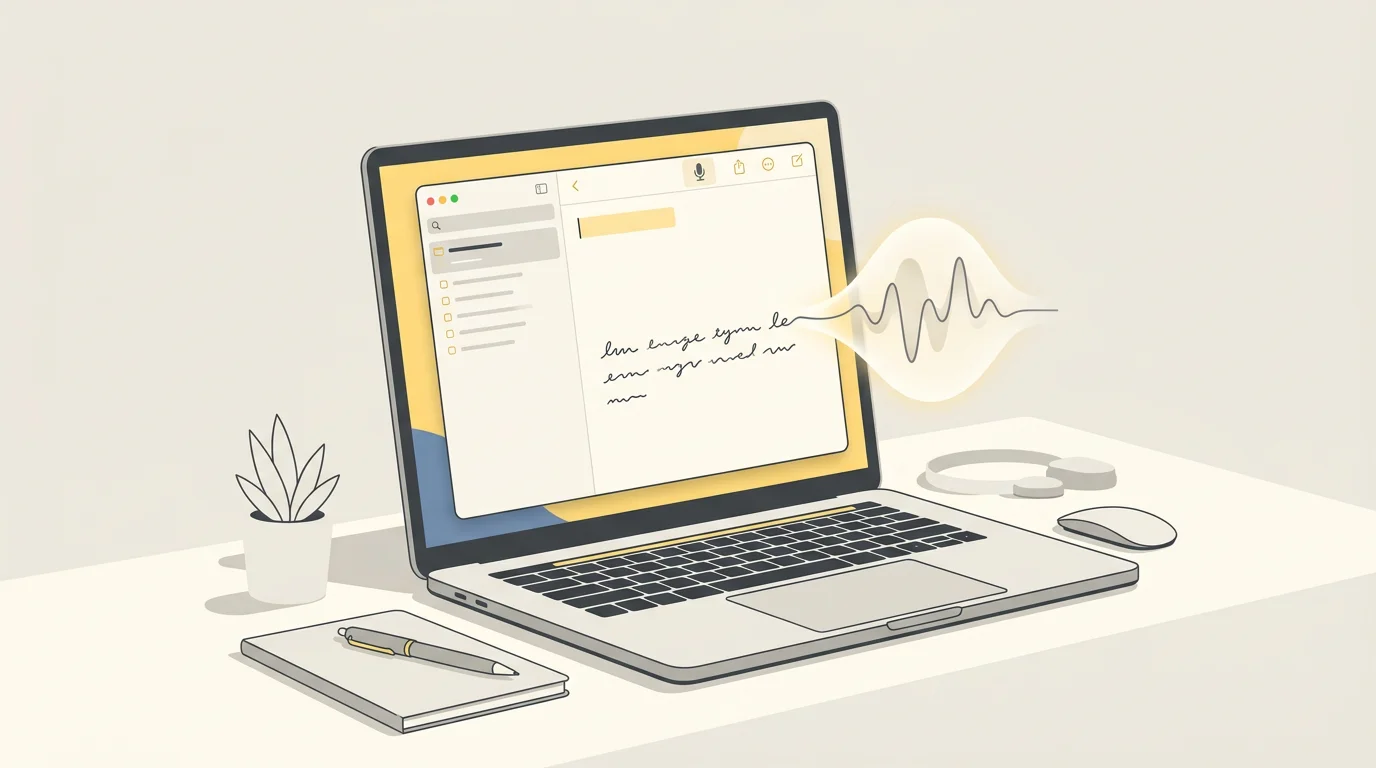
Voice Dictation for Apple Notes on Mac: A Better Workflow Than Built-In Dictation
By Kiran Jd
Published · Updated
By Kiran Jd
Published · Updated
Apple Notes is one of the best places to use voice dictation on Mac because the job is usually simple: capture ideas, meetings, outlines, and personal notes fast enough that they do not disappear.
The problem is that built-in dictation is often good enough to test the habit, but not always good enough to make it stick. If you use Notes every day, a faster hotkey workflow and clearer privacy model can matter more than extra features.
Apple Notes works especially well for dictation when you are:
Voice is less useful when you are doing precision formatting, table-heavy notes, or aggressive line-by-line editing. In those cases, dictation works best as a first draft, not the final pass.
Apple's built-in dictation is a fine starting point if you:
For many Mac users, that is enough. The issue starts when Notes becomes a daily capture tool and you begin to care about friction:
That is where a dedicated Mac dictation app becomes more useful.
The most reliable pattern is simple:
Create a fresh note or click into the exact section where you want text to land. Voice dictation works best when the cursor is already in the right place.
Instead of speaking a ten-minute monologue, dictate a heading, a paragraph, or a bullet cluster at a time. That keeps cleanup small and makes the note easier to shape.
Say the idea naturally. Fix wording and structure after the thought is safely on the page. This is especially useful for people who think faster than they type.
Do one quick cleanup pass after each burst. Fix obvious mistakes, then move on. Editing every sentence as you speak usually kills the advantage of dictation.
Speakmac works well with Apple Notes because the workflow is direct:
That sounds trivial, but it is the whole point. There is no separate capture window, no copy-paste bridge, and no need to move into a different app just to get words down.
It also fits Notes especially well if you care about private note-taking. Offline dictation keeps the voice-to-text step on your Mac, which is a cleaner setup than bouncing sensitive thoughts through a cloud transcription layer.
Some of the best Apple Notes dictation workflows are:
If your real workflow starts in Notes and later moves into docs, email, or task systems, dictation helps at the capture stage where typing usually creates the most drag.
Choose another tool or workflow if:
But if Apple Notes is where ideas begin for you, optimizing dictation there is worth it.
Voice dictation for Apple Notes on Mac works best when it feels invisible. Click into the note, speak naturally, keep bursts short, and clean up after.
| If you use Notes for... | Best next step | Why |
|---|---|---|
| Occasional personal notes | Start with Apple Dictation | It is already on the Mac and good enough for light capture. |
| Daily private capture | Try Speakmac | The direct, offline workflow keeps note-taking fast and contained. |
| Therapy, legal, finance, or sensitive work notes | Read private dictation for sensitive work | The privacy question becomes more important than raw convenience. |
| Recorded audio or interviews | Compare MacWhisper vs Speakmac | Apple Notes dictation is live-input; recordings are a separate workflow. |
| Price and ownership clarity | Use the Mac dictation pricing guide | Daily note capture is where a low-friction paid tool can make sense. |